How to Edit an eBay Listing (Seller Hub, App & Auction Rules)

Short answer: Yes — you can edit an eBay listing after it is live, in Seller Hub or on the eBay app, and revising is free unless you add a paid upgrade. What you can change depends on the format: fixed-price listings are the most flexible, while auctions lock down once bids arrive and time runs under 12 hours.
A listing is rarely perfect the first time. The price turns out too high, a photo shows the wrong angle, the title misses the keyword buyers search for, or a typo slips into the description — and every hour the listing sits wrong is an hour of lost sales. The good news is that eBay lets you fix most of it without ending the listing and starting over, which matters, because ending and relisting throws away watchers, views and sales history that a simple revision keeps.
This guide from Zyrro walks through the exact clicks for editing a listing in Seller Hub, in My eBay and on the eBay app, what you can and cannot change on fixed-price and auction listings, the 12-hour auction rules, what revising costs, and the worked-out fee maths for US and UK sellers — so you can fix a listing in minutes instead of rebuilding it from scratch.
Can you edit an eBay listing once posted?
Yes. eBay calls it “revising” a listing, and you can do it at any point while the listing is live — the listing does not have to be a draft, and there is no waiting period before you can make your first change. The revision takes effect as soon as you save it, and buyers see the updated version immediately.
What changes is how much you can edit, and that depends on three things: the listing format (fixed price or auction), whether anyone has bought or bid yet, and how much time is left on an auction. A fixed-price listing with no purchases is the most flexible thing on eBay — almost everything except the format and the duration can be changed. An auction with bids and under 12 hours left is the least flexible — at that point you can add an upgrade or answer a question, and little else. The sections below work through each case in turn, using eBay’s own rules from its official help page on revising a listing.
One rule applies to every format: you cannot use an edit to sell a different item. If the item itself has changed — a different model, a different product entirely — eBay requires a new listing. Editing is for fixing the listing of the item you already listed, not for swapping one product for another.
How do I edit an existing eBay listing?
Seller Hub is the fastest route, and it is the only way to edit several listings at once. The steps come from eBay’s official help page on revising a listing.
Edit a listing in Seller Hub
- Open Seller Hub and go to your active listings. Go to Seller Hub > Listings > Active (or use eBay’s “Manage active listings” page). Every live listing is here, fixed price and auction alike.
- Select the listing you want to edit. Tick the checkbox next to the item. You can tick several fixed-price listings at once if you want to apply the same change to all of them — bulk editing is covered later in this guide.
- Choose Edit. With the listing selected, choose Edit from the actions. The listing form opens with all your current details filled in.
- Make your changes. Change the title, price, photos, description, item specifics or shipping details — within the limits for your listing type, which the next sections spell out.
- Save. Submit the revision and the listing updates immediately. There is no review delay for an ordinary revision.
Edit a listing in My eBay
If you still use the classic My eBay pages instead of Seller Hub, the flow is the same shape with different labels: go to My eBay > Selling > Active, find the item, open the More actions dropdown next to it and select Revise, then choose Revise it to open the form. Make your changes and save, exactly as in Seller Hub.
Whichever route you use, two habits save trouble. First, check the listing on the live eBay page after you save — a revision that looks right in the form can still show a cropped photo or a truncated title on the public page, and the live page is the one buyers see. Second, if the listing has bids or purchases, read the rules for that case before you start editing, because the form will simply refuse the changes eBay does not allow — and knowing that in advance is faster than discovering it field by field.
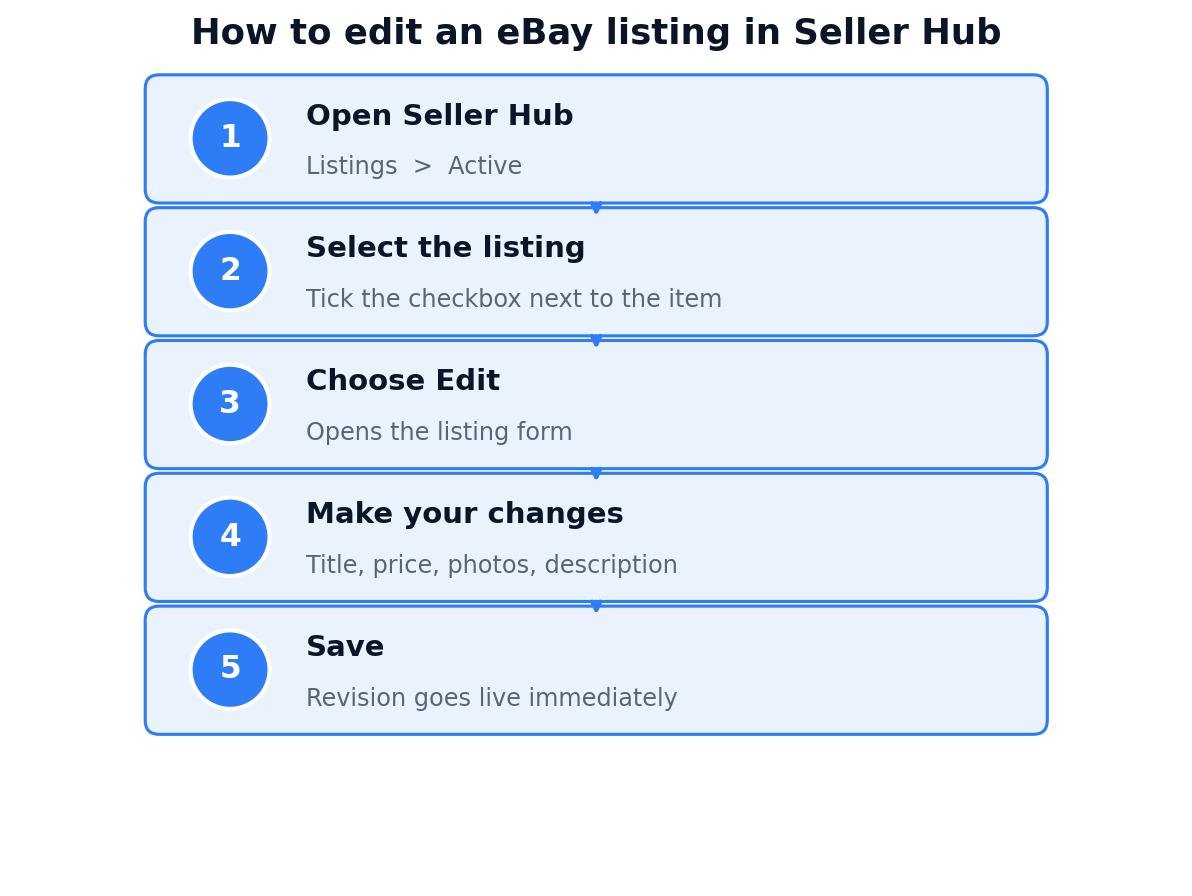
The five Seller Hub steps in order: open your active listings, select the item, choose Edit, make your changes, and save — the revision goes live immediately.
How to edit an eBay listing on iPhone
You can edit a listing from the eBay app, which is the option sellers reach for when they spot a problem away from their desk — the same question behind the search “how to edit an ebay listing on iphone”. The flow mirrors Seller Hub, with the app’s own menu labels.
- Open the eBay app and go to Selling. Tap Selling, then open your Active listings.
- Find the listing and open it. Tap the listing to open its details, then look for the Edit option (on some app versions it sits under a three-dot “More” menu).
- Make your changes and save. Change the title, price, photos or description within the same rules as desktop, then save. The revision goes live immediately, exactly as on desktop.
One warning: the app’s selling screens change more often than the desktop ones, and the Edit option is the setting most likely to move after an update. If you cannot find it on your phone, do not keep tapping around — open Seller Hub in your phone’s browser or on a desktop and edit the listing there. The rules and the fees are identical whichever way you do it; only the buttons move. And remember that the auction restrictions below apply on the app too — an auction with bids and under 12 hours left is just as locked down on your phone as it is on a desktop.
What can you change on an eBay listing?
For a fixed-price listing with no purchases yet, the answer is nearly everything. The table below is eBay’s own revise matrix, from its official help page, and it is the single most useful reference in this guide — check it before you start editing, because the form will not warn you about the limits until you try to save.
| What you want to change | Fixed price, no purchases | Fixed price, with purchases |
|---|---|---|
| Title | Yes — any time | Yes |
| Price | Yes — raise or lower | Decrease only |
| Photos | Yes — add or change | Yes — add or change |
| Description | Yes | Yes — add to it |
| Categories | Yes | Yes |
| Quantity | Yes | Yes |
| Item specifics | Yes | Yes |
| Shipping details | Yes | Yes — but earlier buyers keep the ORIGINAL shipping cost |
| Upgrades (Bold, Subtitle, Gallery Plus) | Yes — add or remove | Yes — add or remove, no refund for removed upgrades |
| Variations | Yes — add, remove or edit | Add or remove only — you cannot EDIT existing variations |
| Duration | No | No |
| Format (fixed price to auction) | Only via “Change to auction” — see below | No |
Three rows in that table catch sellers out. First, the price row: once someone has bought a fixed-price item, you can only lower the price, never raise it. That is eBay protecting the buyers who already paid — the price they bought at is locked in, and raising it afterwards would change the deal after the fact. If you listed too low and sales have already started, lowering is the only direction the form allows, so the real fix is to end the listing and relist at the right price — which is why the revise-versus-relist section at the end of this guide matters.
Second, the shipping row: you can edit the shipping details on a listing that already has purchases, but the buyers who already bought keep the shipping cost they originally paid. The new shipping terms apply only to future buyers. If you need to change what an existing buyer pays for postage, that is a conversation with the buyer and a refund or a revised invoice, not a listing edit.
Third, the variations row: on a listing with purchases you can add or remove variations, but you cannot edit the ones that already exist. If a variation itself is wrong — the wrong size, the wrong colour name — the clean fix is to remove that variation and add a corrected one, rather than trying to edit it in place.
Changing a fixed-price listing to an auction
eBay does offer a “Change to auction” option, but it is a conversion, not an edit, and it comes with costs that are easy to miss. The Buy It Now price is removed, the watchers and views are NOT carried over to the new auction, a single-item listing ends and is replaced by the auction, and on a multi-item listing the quantity drops by one. In other words, the auction starts from zero — no watchers, no view count, no accumulated search signals. Only use it when the auction format itself is the point, not as a casual way to change the price.
How to edit an eBay auction listing: the 12-hour rule
Auctions are where eBay’s revise rules get strict, because a bid is a commitment from a buyer. Once someone has bid, eBay limits what you can change so the item they bid on stays the item they bid on. The deciding factors are how much time is left and whether anyone has bid — the same 12-hour line that governs ending a listing early.
| Time left | Bids | What you CAN change | What you CANNOT change |
|---|---|---|---|
| 12+ hours | No bids | Edit the title; reduce the starting price; add or change photos; add a second category; add or remove upgrades | Duration, format; and reducing the starting price earns NO insertion-fee credit |
| 12+ hours | 1+ bids | Add a second category; add to the description; add photos; add upgrades | Title, starting price, item specifics, shipping details, existing description text, duration, format |
| Under 12 hours | No bids | Change the category and item specifics; add a second category; add to the description; add upgrades; add photos; add payment methods and ship-to locations | Starting price, duration, format |
| Under 12 hours | 1+ bids | Add upgrades and answer buyer questions only | Everything else — title, price, description, photos, category, specifics, shipping |
The pattern is simple: the more committed the buyers are, the less you can touch. With no bids and 12 or more hours left, an auction is almost as editable as a fixed-price listing — you can fix the title, cut the starting price and swap the photos. The moment the first bid lands, the title, the price and the item specifics are frozen, because changing them would change what the bidder agreed to buy. And in the final 12 hours with bids on the board, the listing is effectively sealed: you can add a paid upgrade or answer a question, and that is all.
Two details in the table deserve a closer look. First, “add to the description” is not the same as editing it: with bids on an auction you can append new information to the description, but you cannot rewrite or delete the existing text. If the description itself is wrong, the honest fix is to add a clearly labelled correction at the top of the description — “Correction: the item is the 2023 model, not the 2024 model” — rather than pretending the original text was never there. Second, reducing the starting price on a no-bid auction earns no insertion-fee credit: eBay does not refund any part of the insertion fee when you cut the price, so a price cut is free to make but buys you nothing back.

The 12-hour rule for editing auctions: no bids means nearly everything is editable, but with bids and under 12 hours left you can only add upgrades and answer questions.
What if an offer has been sent or received?
Listings with an open Best Offer sit in a middle ground of their own. You can add upgrades, answer the buyer through messaging, change the quantity, add shipping options (including local pickup), add photos on an auction (but not remove them), and add a separate description on an auction. You cannot change the duration or the starting price, the item specifics, the shipping details, or edit the existing description text. In practice that means an open offer freezes the commercial terms — price, specifics, shipping — while still letting you improve the listing’s presentation. If the price itself is the problem, the answer is to decline the offer and revise, or to accept it and move on.
How to change the price on an eBay listing
Changing the price is the single most common edit sellers make, and the rules depend on the listing type. On a fixed-price listing with no purchases, you can raise or lower the price as often as you like, free of charge. Once purchases exist, you can only lower it. On an auction with no bids and 12 or more hours left, you can reduce the starting price — but you cannot raise it, and you get no insertion-fee credit for the reduction. On an auction with bids, the starting price is frozen entirely.
Before you cut a price, it is worth knowing what the cut actually saves you in fees, because a lower price also means lower final value fees. Our eBay Fee & Profit Calculator works out the fees on any price in seconds, but the two examples below show the maths so you can judge a price cut on its own terms. Before any price change, check our guide to pricing items on eBay, so the new price still leaves a profit.
Worked example 1: US seller cuts a $100 listing to $90
A US seller has a fixed-price item listed at $100 and cuts it to $90 to move it faster. The revision itself costs nothing. The final value fee at $100 is 13.6% ($13.60) plus the $0.40 per-order fee, which is $14.00. At $90 the fee is 13.6% ($12.24) plus $0.40, which is $12.64. The price cut saves $1.36 in fees — a small offset against the $10.00 of revenue given up, but worth knowing when the cut is the difference between selling and sitting unsold.
| US fixed-price sale | Listed at $100 | Cut to $90 |
|---|---|---|
| Final value fee (13.6%) | $13.60 | $12.24 |
| Per-order fee | $0.40 | $0.40 |
| Total fees | $14.00 | $12.64 |
| Fee saving from the cut | — | $1.36 |
Worked example 2: UK business seller cuts a £100 listing to £90
A UK business seller makes the same cut, £100 down to £90. At £100 the fees are the 12.9% final value fee (£12.90), plus the 0.35% regulatory fee (£0.35), plus the £0.40 per-order fee — £13.65 before VAT — and then 20% VAT on those fees (£2.73), for a total of £16.38. At £90 the fees are £11.61 plus £0.32 plus £0.40, which is £12.33 before VAT, plus £2.47 VAT, for a total of £14.80. The cut saves £1.58 in fees. A UK private seller pays no final value fee at all, so the same cut costs them nothing in fees either way — the £10.00 of revenue is the whole cost of the cut.
| UK business sale | Listed at £100 | Cut to £90 |
|---|---|---|
| Final value fee (12.9%) | £12.90 | £11.61 |
| Regulatory fee (0.35%) | £0.35 | £0.32 |
| Per-order fee | £0.40 | £0.40 |
| VAT at 20% on the fees | £2.73 | £2.47 |
| Total fees | £16.38 | £14.80 |
| Fee saving from the cut | — | £1.58 |
Can I edit all my eBay listings at once?
Yes — Seller Hub has bulk editing tools, and they are the answer to the search “can I edit all my eBay listings at once”. The method is the same selection you use for a single edit, scaled up: go to Seller Hub > Listings > Active, tick the checkboxes next to every listing you want to change, and use the bulk actions to apply the same change to all of them — the usual fields are price, quantity, handling time and similar listing-level settings. The change applies to every selected listing in one save, which is how sellers reprice a whole category or add a handling-time change across dozens of listings in minutes.
Bulk editing works best for fixed-price listings. Auction listings, and any listing with bids or purchases, are edited one at a time — the same restriction that applies to ending auctions with bids, where eBay only lets you act on one listing per step and requires a reason for each. If you tick several auctions with bids and the edit option disappears, untick them and edit each one separately; the restriction is eBay’s, not a fault in your account.
A word of caution before a bulk price change: it applies to everything you ticked, including the listing you meant to leave alone. Sellers who bulk-edit regularly keep a short checklist — filter the active listings to the exact set first, tick them, then read the summary screen before saving. A bulk edit that cuts the price on fifty listings by mistake is fifty revisions to undo, one at a time.
Does editing an eBay listing cost anything?
Revising a listing is free — unless you add a paid upgrade while you are in the form. That is the whole rule: changing the title, price, photos, description, category, quantity or shipping costs nothing, but adding Bold, Subtitle or Gallery Plus charges the upgrade fee for that listing, and removing an upgrade you already paid for earns no refund.
| Upgrade | Auction | Good ‘Til Cancelled (fixed price) |
|---|---|---|
| Bold | $2.00 | $4.00 |
| Gallery Plus | $0.35 | $1.00 |
| Subtitle (item price $150 or less) | $1.50 | $2.00 |
| Subtitle (item price over $150) | $3.00 | $6.00 |
The figures above are eBay’s US upgrade fees from its official selling-fees page, and they are charged per listing, each time you add the upgrade. Gallery Plus is free in Art, Antiques, Collectibles and Pottery & Glass. Two other fees sit alongside the upgrade table and matter when you are deciding whether to revise or to start over: the insertion fee, which is free for your first 250 listings a month and $0.35 after that, and the reserve fee on an auction, which is $5.00 or 7.5% of the reserve, whichever is greater, capped at $250 — and charged whether or not the item sells. A 1-day or 3-day auction also carries a $1.00 short-duration fee, and scheduling a listing is free. The final value fee itself is 13.6% of the sale price up to $7,500, plus a $0.40 per-order fee on orders over $10 ($0.30 on orders of $10 or less).
UK sellers work from a different table: business sellers pay a 12.9% final value fee plus a 0.35% regulatory fee plus £0.40 per order, with 20% VAT added to the fees, while private sellers pay no final value fee at all. Private sellers also get 300 free listings a month. The UK reserve fee is 4% of the reserve, capped at £150, with a minimum reserve of £50 — and like the US reserve fee, it is charged whether or not the item sells.
Should you revise the listing, or end it and relist?
Editing is almost always the cheaper move, because revising is free and relisting is not — and because relisting throws away the watchers, views and sales history the original listing built up. But there are cases where ending and relisting is the right call, and the table below separates them.
| Situation | Best move | Why |
|---|---|---|
| Wrong price, wrong photo, typo, wrong category | Revise | Free, instant, keeps watchers and history |
| Price too low and purchases already exist | End and relist | Revising can only lower the price once buyers exist |
| Auction with bids, under 12 hours, title or price wrong | End and relist | The fields are frozen — editing cannot fix them |
| Item itself is different | End and relist | eBay requires a new listing for a different item |
| Listing is stale, no watchers, no views | Either | Nothing to lose by relisting; revising is still free |
| Wrong format — fixed price should have been an auction | Change to auction, or end and relist | Conversion loses watchers and views; relisting is cleaner if the listing has none |
Worked example 3: revise for $0, or end and relist for $2.35
Take a US seller with a 7-day auction listing that has a Bold upgrade on it, and suppose the title needs fixing with no bids yet and more than 12 hours left. Revising the title costs $0.00 — the title is editable in that window, and the Bold upgrade stays in place. Ending the listing and relisting the item costs the insertion fee of $0.35 (once past the 250 free listings a month) plus the Bold upgrade of $2.00, which has to be bought again on the new listing — $2.35 in total, and the new listing starts with no watchers and no views. The revision is cheaper by $2.35 and keeps everything the listing has already earned. That is the maths behind the rule of thumb: if the field is editable, edit it.
| US auction, Bold upgrade, title fix needed | Revise | End and relist |
|---|---|---|
| Revision | $0.00 | — |
| Insertion fee (past 250 free/month) | — | $0.35 |
| Bold upgrade (bought again on the new listing) | — | $2.00 |
| Total cost | $0.00 | $2.35 |
| Watchers and views kept? | Yes | No — new listing starts at zero |
Worked example 4: the auction you cannot fix by editing
Now take the same auction with a $100 highest bid on it and under 12 hours left, and suppose the title has a typo. Editing cannot fix the title — the field is frozen. The options are to leave the typo, add a correction to the description (which is still allowed), or end the listing and relist. Ending it early with a $100 bid on the board may cost a final value fee on the highest bid: 13.6% of $100 is $13.60, plus the $0.40 per-order fee, which is $14.00 paid for a sale that never happens. Against that, adding a correction to the description costs nothing and the auction runs to its end. Unless the typo changes what the item actually is, the correction note wins — and our guide to ending an eBay listing early works through the full 12-hour rule and the fee maths for the cases where ending really is the answer. If you do relist, our guide to relisting an item on eBay covers the steps and when to use Sell Similar instead.

Revising a listing costs $0; ending it and relisting the same auction with its Bold upgrade costs $2.35 — and the new listing starts with no watchers.
Why can’t I edit an eBay listing?
If the Edit button is missing or the form refuses a change, it is almost always one of the rules in this guide — and the fix depends on which one you have hit.
The auction has bids and under 12 hours left. This is the most common cause. In that window only upgrades and question-answering are allowed, so the title, price, description, photos, category and shipping fields are all locked. The way forward is to add a correction to the description, which is still allowed, or to wait for the auction to end and relist with the fix in place.
You are trying to raise the price on a listing with purchases. Once a fixed-price item has sold, the price can only go down. If the price is genuinely too low, end the listing and relist at the right price — and read our guide to scheduling an eBay listing if the relist needs to go live at a specific time.
You are trying to change the duration or the format. Neither can be edited directly. The duration is set when the listing is created, and the only format change eBay offers is “Change to auction”, with the watcher and view loss described above. If the duration is wrong, the listing has to be ended and recreated.
You are trying to edit a listing that has already sold out or ended. An ended listing cannot be edited — it lives in your ended listings, and the way to bring it back is Sell Similar, which copies the title, photos and description into a fresh listing you can fix before publishing. Our relist guide walks through that flow.
You are trying to edit variations that already have purchases. Existing variations cannot be edited once buyers exist. Remove the wrong variation and add a corrected one instead — the listing keeps its history, and the new variation carries the right details.
You are trying to sell a different item by editing. eBay blocks this outright, and it is the one case where there is no workaround inside the edit form: a different item needs a new listing, with its own title, photos, specifics and price.
If none of those fits, the remaining causes are mundane: the listing may have ended while you were looking at it, the app may need an update, or a browser cache may be showing you a stale copy of Seller Hub. Refresh the page, check the listing is still active, and try the desktop Seller Hub before assuming the listing itself is the problem. And if the listing carries a reserve price, remember that the reserve fee is already spent — our guide to adding a reserve price on eBay explains when that fee is worth paying and when it is wasted.
Frequently asked questions about editing an eBay listing
How do I edit an existing eBay listing?
Go to Seller Hub, open Listings, then Active, tick the checkbox next to the item and choose Edit. Change the title, price, photos, description or shipping, then save — the revision goes live immediately. In My eBay, go to Selling, then Active, open More actions next to the item and select Revise, then Revise it.
Why can’t I edit an eBay listing?
The usual reason is an auction with bids and under 12 hours left, where eBay only allows adding upgrades and answering questions. Other causes are trying to raise the price after a purchase, changing the duration or format, editing a listing that has already ended, or editing variations that already have buyers attached.
Can you edit an eBay listing once posted?
Yes — eBay calls it revising, and you can edit a live listing at any time, with no waiting period. What you can change depends on the format and on bids and purchases: fixed-price listings are the most flexible, while auctions lock down once bids arrive and time runs under 12 hours.
Can I edit all my eBay listings at once?
Yes, for fixed-price listings: in Seller Hub, go to Listings, then Active, tick the checkboxes next to every listing you want to change and use the bulk actions to apply the same price, quantity or handling-time change to all of them at once. Auctions with bids, and listings with purchases, must be edited one at a time.
How to change price on eBay listing?
Open the listing in Seller Hub, choose Edit, then change the price and save. On a fixed-price listing with no purchases you can raise or lower it freely; once purchases exist you can only lower it. On an auction with no bids and 12 or more hours left you can cut the starting price — with bids, it is frozen.
How to edit an eBay listing on iPhone?
Open the eBay app, tap Selling, then Active, open the listing and tap Edit. Change the title, price, photos or description within the same rules as desktop, then save. If the Edit option has moved after an app update, open Seller Hub in your phone’s browser instead — the rules and fees are identical.
Conclusion: revise first, relist only when the rules force you to
Editing an eBay listing is free, instant, and keeps everything the listing has already earned — its watchers, its views, its sales history and its place in search. The cases where it cannot help are narrow and specific: a price that can only go down once buyers exist, an auction frozen by bids and the 12-hour clock, a duration or format that cannot be changed, or an item that is genuinely different. In those cases, ending and relisting is the honest fix, and the worked examples in this guide show what it costs — $2.35 to rebuild a Bold-upgraded auction, or a possible $14.00 final value fee to end an auction with a $100 bid on it.
The habit that keeps all of this cheap is simple: check the listing before it goes live, set the price with the fee maths in mind, and revise instead of ending whenever the field you need is still editable. For the fee maths on any listing, run it through Zyrro’s eBay Fee & Profit Calculator first — and for the rest of the selling workflow, our guides to ending a listing early, relisting an item and scheduling a listing cover the steps around it. For the full set of seller tools and guides, start at the eBay seller hub.