How to Send Offers to Watchers on eBay: Rules, Timing and What It Costs

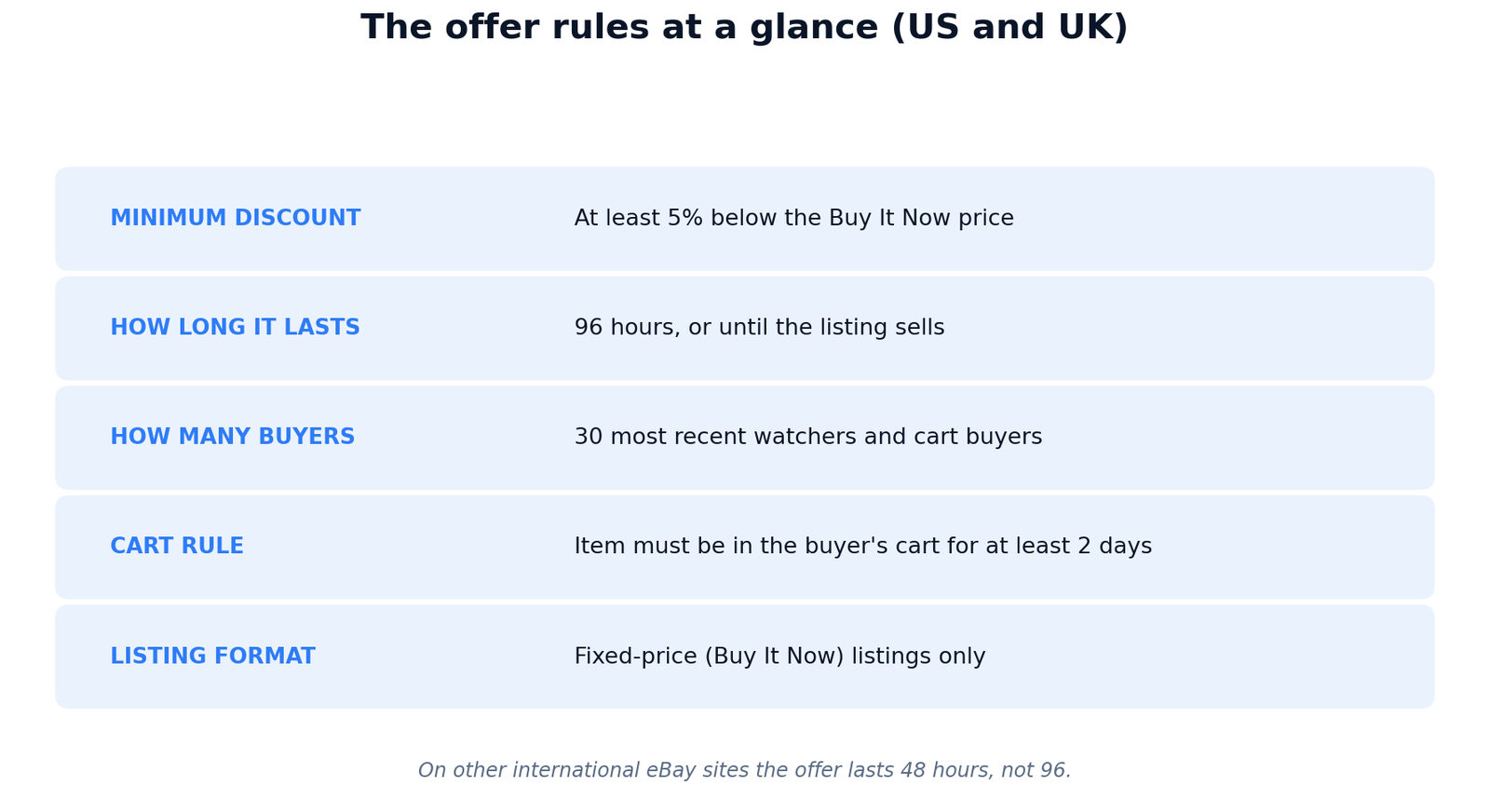
Short answer: To send offers to watchers on eBay, go to Seller Hub, open Active listings, filter by Eligible to send offers, pick a listing, and set a price at least 5% below the Buy It Now price. eBay sends it to the 30 most recent watchers and cart buyers, live for 96 hours in the US and UK.
A watcher is the closest thing to a sale that has not happened yet. Somebody found your listing, read it, and cared enough to save it — and then did nothing. Every day that watcher sits there, the listing ages, the watch count climbs, and the sale stays hypothetical. eBay built a tool for exactly this moment: Offers to buyers. It lets you send a discounted price directly to the people who already showed interest, instead of cutting the public price and giving the same discount to strangers who never looked twice.
It sounds simple, and the button is simple. The rules around it are not. Sellers get tripped up by the same four questions: how much discount is enough, how long the offer lasts, who actually receives it, and why the button sometimes is not there at all. Worse, the most repeated answers online are wrong for the US and UK. You will see “48 hours” quoted as the offer length, and “5% for watchers, 3% for cart, 2% for viewed” quoted as the discount rule. Both are wrong for an American or British seller, and this guide shows you why, using eBay’s own help pages — the US, UK and Singapore versions of “Adding Best Offer to your listing and sending offers to buyers” (help article id 4144), the US Seller Center page “Offers to Buyers and Best Offer”, and eBay’s Export version of the same article — all read live on 16 November 2026. Where eBay’s own pages go quiet, we say so, instead of dressing a seller-guide guess up as an official rule. At Zyrro, we also did the money maths, because an offer is a discount, and a discount comes straight out of your profit. You will find the fee rates behind every example in this guide on our eBay seller tools hub, next to the free calculator.
What does sending an offer to watchers actually do?
An offer to buyers is a private, time-limited discount. You pick a fixed-price listing, set a lower price, and eBay delivers it to the buyers who have already shown interest in that item — the people watching it, and the people who put it in their cart. The public listing price does not change. Nobody else sees the offer. The buyer gets a message and a notification with your price, and they can accept it, counter it, decline it, or let it expire.
Three facts shape everything else in this guide, so fix them first. First, an open offer does not lock the item. eBay’s Seller Center is explicit: “Having an open offer does not prevent others from buying the item.” A stranger can still buy at the full Buy It Now price while your offer sits unanswered, and if they do, the offer dies with the sale. Second, with a single-quantity listing, the first buyer to accept and successfully complete payment gets the deal — acceptance alone is not enough, payment is. Third, the people who receive your offer are defined narrowly. eBay calls them “interested buyers”: buyers who are watching your item or have added it to your cart. eBay’s Export version adds a time window the help articles do not print: a buyer counts if they watched the item or put it in their cart at any point in the previous five days.
That definition matters because it draws the line between this tool and the other ways eBay lets you cut a price. A coupon reaches whoever you target with a code. A sale event cuts the public price for everyone. An offer to buyers reaches only the people who already raised their hand. That is why it works best on listings that have watchers but no sale — the interest is proven, and the only missing piece is a nudge on price.
How to send offers to watchers on eBay
The desktop route takes about a minute once you know where the button lives. The steps below are eBay’s own, from the official help article, with the two places sellers most often look in the wrong spot called out.
Step 1: Find your eligible listings
Go to My eBay Selling or Seller Hub Active listings. In Seller Hub, use the “Eligible to send offers” filter to see only the listings that can receive an offer. This filter is the fastest way to work through a shop: instead of opening listings one by one to check for the button, you get the whole list of candidates at once. If a listing is not on this filtered list, it is not eligible right now — the reasons are covered in the troubleshooting section below, and most of them are fixable.
Step 2: Select Send offer beside the listing
Click Send offer beside the eligible item. eBay will show you the interested buyers for that listing and the offer form. If you are sending to several listings at once, use the bulk route instead — it is covered in its own section below, because the discount rules change slightly when you select more than one listing.
Step 3: Set your offer price
Enter the price you are offering. The one hard rule is the minimum: the amount must be at least 5% less than the Buy It Now price. A $100 listing needs an offer of $95 or less. A 4% cut is rejected by the form, not by the buyer. Shipping is not included in the offer price, and the discount applies to the item price only — you cannot use an offer to cut postage. Pick the number with the profit maths in the later section of this guide, not with a round number that feels generous: 10% off a $100 item costs you $8.64 of profit, and 20% costs you $17.28.
Step 4: Decide whether to allow counteroffers
In Seller Hub, you can tick “Don’t allow counteroffers” if you want the offer to be take-it-or-leave-it. Leave it unticked if you are happy to negotiate. The default matters more than it looks: a buyer who counters is still a buyer who is engaged, and a counter is often the start of a sale rather than a rejection. But if your price is already at your floor, switching counteroffers off stops a long back-and-forth that can only end below the number you can accept.
Step 5: Add a message
Write a short message to the buyer. This is optional, but it is the only part of the offer the buyer reads in your voice, so use it. Say why the price moved — a short, specific line beats a generic “special offer for you”. Keep it to one or two sentences, name the item, and do not shout in capital letters. eBay delivers your message with the offer.
Step 6: Select Send offer to buyers
Review the price and the message, then select Send offer to buyers. eBay sends the offer to the 30 most recent interested buyers for that listing. That is the whole flow. The offer is now live, and the clock is running — 96 hours in the US and UK, as the next-but-one section explains in detail.

How to send offers to watchers on eBay app
The app route is shorter than the desktop route, and it is the one most sellers actually use, because the notification that a new watcher appeared usually arrives on the phone. eBay’s Export help page describes it; the US and UK help articles do not spell out the app steps, so the wording below follows the Export version.
Open the eBay app and go to the Active page within the Selling tab. If you have more than one listing that is eligible for offers, you will see a quick filter called “Send Offers-Eligible”. Apply that filter to see those listings, select the ones you want, and send your offers. The same rules apply as on desktop: the price must be at least 5% below Buy It Now, the offer goes to the 30 most recent interested buyers, and it is valid for 96 hours on ebay.com and ebay.co.uk.
Two practical differences are worth knowing. First, the app shows you the filter only when you have eligible listings — if the filter is missing, that is eBay telling you nothing currently qualifies, not a bug in the app. Second, bulk sending on the app uses the same “Send Offers-Eligible” filter and the same percentage-off choice as desktop, so an offer you start on the phone and an offer you start on a computer behave identically once sent. There is one claim you will see in search results that we could not verify anywhere on eBay’s own pages: a cap of 25 items per mobile send. No official page we read states it, so do not plan around it — if you are sending to more than a handful of listings, use Seller Hub on desktop, where the bulk flow is fully documented.
How do I send offers to multiple watchers on eBay?
Sending one offer at a time is fine for a single slow listing. It is a poor use of an evening when twenty listings each have watchers. eBay’s bulk flow sends one percentage discount across several listings in a single pass, and it is where most sellers should live.
Go to Seller Hub Active listings. Select “Send Offers – Eligible” to see your eligible listings. Tick the listings you want to include and select Send Offers. Choose a Percent off discount — 10% is the example eBay itself uses — and that discount applies to all the listings you selected. Add one message, then select Send offers. eBay sends the offer to the 30 most recent interested buyers for each listing.
The bulk flow has one rule that catches sellers out. The discount you pick must be at least 5% below the Buy It Now price, and when the listings you selected have different minimums, the highest minimum discount percentage among them applies to all of them. In practice, for US and UK sellers, that minimum is 5% across the board — eBay’s Seller Center states it flatly: “The minimum discount is 5% across all item prices.” So a bulk send of mixed-price listings still bottoms out at 5%, and the percentage you choose is the percentage every selected listing gets.
| Way to send | Where | Discount | Who receives it | Valid for (US and UK) |
|---|---|---|---|---|
| Single listing | Seller Hub Active, or My eBay Selling | At least 5% below Buy It Now | 30 most recent interested buyers | 96 hours |
| Bulk | Seller Hub Active, “Send Offers – Eligible” filter | One percentage for all selected listings, at least 5% below Buy It Now | 30 most recent interested buyers per listing | 96 hours |
| App | Selling tab, Active page, “Send Offers-Eligible” filter | At least 5% below Buy It Now | 30 most recent interested buyers | 96 hours |
| Automatic | Toggle inside the Send Offers flow; Offer Settings in Active listings | Same discount you set, carried over | Future interested buyers as they appear | 96 hours per offer |
| Custom (Reply with offer) | Messages, replying to a buyer question | Must be lower than Buy It Now (US and UK); up to 3 offers per buyer | That one buyer | 96 hours |
One more bulk detail: the offer is per listing, not per buyer. If a listing has 80 watchers, the first send reaches the 30 most recent. The remaining 50 are not forgotten — if you use automatic offers, eBay continues sending up to 30 more every 48 hours until all interested buyers have received the offer. A manual send on its own reaches the first 30 only, so a listing with a large watch list is a good reason to switch automation on rather than sending by hand.
What are the rules for sending offers to watchers on eBay?
Every number in this section comes from eBay’s own pages, and the two numbers most guides get wrong are corrected here, because they are the two that cost sellers money or waste their time.
| Rule | US and UK (ebay.com, ebay.co.uk) | Other eBay sites |
|---|---|---|
| Minimum discount | At least 5% below the Buy It Now price, for every item price | At least 5% below Buy It Now; Singapore lists tiered bulk bands (see below) |
| How long the offer lasts | 96 hours, or until the listing sells | 48 hours, or until the listing sells |
| How many buyers | 30 most recent interested buyers; automatic offers add 30 more every 48 hours | Same 30-buyer rule |
| Who counts as interested | Watching the item, or added it to their cart (within the previous 5 days, per eBay’s Export page) | Same definition |
| Cart waiting rule | Item must have been in the buyer’s cart for at least 2 days | Same 2-day rule |
| Listing format | Fixed price (Buy It Now) only | Same |
| Counteroffers | Buyer and seller can send up to 5 each (US); up to 3 each (UK) | Up to 5 each (Singapore); counteroffer expiry 48 hours |
The 48-hour mistake
Search for this topic and you will see “offers last 48 hours” everywhere, including in Google’s own AI Overview for this exact question. For a US or UK seller, it is wrong. eBay’s help articles state it plainly for ebay.com and ebay.co.uk: “Each offer is valid for 96 hours or until the listing is sold, whichever comes first.” The 48-hour figure is the rule for other international eBay sites — eBay’s Export page carries the footnote on its bulk, app and custom sections: “Applicable for ebay.com and ebay.co.uk only. Offers are valid 48 hours on other international sites.” The AI Overview quoted the international rule as if it were universal. If you are selling on ebay.com or ebay.co.uk, your buyers have four full days to accept, not two — which changes how urgently you need to follow up, and how long you should wait before assuming the offer is dead.
The 5%, 3%, 2% mistake
The second wrong number is subtler. Several guides and the AI Overview present the minimum discount as a split by buyer type: 5% off for watchers, 3% for items in a cart, 2% for items viewed. No official eBay page we read says that, and one part of it is invented outright: there is no “viewed items” recipient category anywhere in eBay’s offer documentation. Interested buyers are watchers and cart buyers only.
Where do 3% and 2% actually come from? From one place only: eBay Singapore’s help article, which lists tiered minimums for bulk offers by price band — at least 5% below Buy It Now for items under $200, 3% for items between $200 and $1,000, and 2% for items over $1,000. They are price bands for bulk sends on one international site, not rates for different kinds of buyer. For the US and UK, eBay’s Seller Center closes the question flatly: “The minimum discount is 5% across all item prices.” So the rule to remember is one number, 5%, for every item, in both of our markets. A $1,500 listing on ebay.com still needs a 5% minimum — a $75 cut — even though the same listing on a Singapore account could go as low as 2%.
Can you still send offers to watchers on eBay?
Yes. Offers to buyers is a live, supported eBay feature, and eBay’s own pages describe it in the present tense with no end date, no pilot label, and no restriction to particular seller tiers. The question keeps appearing in search results because sellers hit the cases where the button is missing and assume the feature was removed. It was not. What changed, or what was never true for that listing, is eligibility — and eBay’s Seller Center lists the exclusions precisely.
An offer can only be sent on a fixed-price (Buy It Now) listing that has interested buyers and is not on sale or being promoted as part of a sale event. Beyond that, eBay says an offer is not available for listings with Best Offer enabled for an auction listing in certain categories (cell phones, motors, real estate, tablets, tickets, or travel); with a Buy It Now price in the Motor Vehicle category; with multiple variations; if the listing is on sale; if the listing is a charitable listing; or multi-quantity listings where the item has been relisted with different variations. Offers are also not available if the listing is an auction with a Buy It Now price.
That list explains most “missing button” cases on its own. A listing on a sale event cannot receive an offer — the sale price already is the discount, and eBay does not stack the two. A multi-variation listing cannot receive one either, because eBay cannot tell which variation the watcher wanted at which price. And a listing with no interested buyers has nobody to send to, so eBay hides the button rather than showing you a form with an empty recipient list.
Why won’t eBay let me send offers to watchers?
When the Send offer button is missing, work through this table before assuming something is broken. Every row is a real reason, and all but the last two are within your control.
| What you see | Most likely reason | What to do |
|---|---|---|
| No Send offer button on the listing | Listing is an auction, or an auction with a Buy It Now price | Offers are fixed-price only. Relist as fixed price if the format allows it. |
| No Send offer button on the listing | Listing is on sale or in a sale event | End the sale or the sale event for that listing, then send the offer. |
| No Send offer button on the listing | Multi-variation listing | Offers are not available on multi-variation listings. Split the variations into separate listings if you want to use offers. |
| No Send offer button on the listing | Motor Vehicle category, or charitable listing | Not eligible. Use a different promotion for these listings. |
| Button is there, but no buyers are listed | No interested buyers yet, or the only cart buyer added the item less than 2 days ago | Wait. Watchers can receive an offer as soon as they watch; cart buyers need 2 days in the cart. |
| Button missing for one specific buyer | That buyer already sent you a Best Offer on the listing | You cannot send them an offer. Reply to their Best Offer with a counteroffer instead. |
| Offer was sent, buyer cannot see it | eBay limits how many offers a buyer can receive | Nothing to fix on your side. eBay caps how many offers a buyer receives, so a buyer who hit the cap will not see yours. |
| Offer expired with no reply | 96 hours passed (US and UK) or the listing sold to someone else | eBay’s pages do not describe re-sending an expired manual offer. Switch on automatic offers so the next interested buyers are covered. |
Two of those rows deserve emphasis. First, the Best Offer clash: if a buyer has already sent you a Best Offer on a listing, the Send offer and Reply with offer buttons disappear for that buyer, and your only move is a counteroffer on the Best Offer they sent. Second, the expiry row: eBay’s pages do not describe any way to re-send a manual offer once it has expired. The only reactivation wording anywhere in the official documentation is for automated offers. That is a practical reason to prefer automation on listings you care about — a manual offer that expires is spent, while an automated one keeps working on the next buyers who show interest.
How to send offers to watchers automatically
Manual offers reward the watchers who are already there. Automatic offers reward the watchers who have not arrived yet. The idea is simple: you set the discount once, and eBay sends the same offer to every new interested buyer who appears on that listing, without you opening Seller Hub each time.
To switch it on, start a normal send in Seller Hub and toggle on “Send automated offer” inside the Send Offers flow, then set your start and end dates. eBay will send the same offer to buyers interested in your current and future active listings — you can select items that are eligible for offers even if they do not have interested buyers yet, so the offer is waiting when the first watcher arrives. You can change the settings later from the Offers tab in Seller Hub, change them for one item or in bulk, and turn an automated offer off at any time. To end one item’s automation, select the item, open the three dots menu, choose End, and confirm. For several items, select them and choose End together.
The settings carry over from the offer you set: the offer price, the message, the duration, and the counteroffer choice all stay the same. If you raise the Buy It Now price, the automatic offer adjusts to keep the same discount. If you lower the Buy It Now price below the current automatic offer amount, eBay pauses the sending rather than sending an offer above the listing price — raise the price again or edit the offer to restart it.
Store subscribers get a stronger version. Under Buyer Groups on the Seller Hub Marketing tab, choose Setup Automatic Offers, pick the inventory to include, set a price range, name the buyer group, review the offer, enter the offer amount and message, toggle counteroffers, set start and end dates, and launch. Instead of opting listings in one by one, you set the criteria and eBay applies them to matching listings — including new listings you create afterwards. Store subscribers can run rule-based automatic offers for up to 150 days. One honest note from eBay’s own Seller Center: “If you’d also like to automate your offers, schedule, and send to interested buyers to save time, an eBay Store subscription is required.” The basic toggle lives inside the Send Offers flow, but the full automation story on eBay is a Store feature — factor that into the decision if you are weighing a subscription against the time you spend sending offers by hand.
What happens after you send an offer to watchers?
Four things can happen, and only one of them needs you to do anything.
If the buyer accepts, the item stays available for purchase until they successfully complete payment. With a single-quantity listing, the first buyer to accept and pay gets the deal; anyone else who was holding the same offer loses it. With a multi-quantity listing, buyers can keep using the offer until every item in the listing is sold or the offer expires. If the same buyer accepts offers on two of your items, combine the shipping into one parcel with a single label instead of posting twice. You do not get an email the moment a custom offer is accepted — the order appears in your Awaiting shipment section once the buyer has paid. After a custom offer is accepted, you cannot change the title, handling time, or custom label of the order.
If the buyer declines, the offer ends for that buyer. There is no penalty to you, and the listing stays live at its Buy It Now price for everyone else. Note the coupon consequence: a Store seller can send a coupon to a buyer once their offer has been accepted or has expired, but not if the buyer declines the offer. A declined offer closes that door; an expired offer leaves it open.
If the buyer counters, you are in a negotiation. Buyers can respond to your offer with a counteroffer, and you can then accept it, decline it, or counter back. You and the buyer can send a maximum of 5 counteroffers each in the US — and a maximum of 3 each in the UK. Each counteroffer you send expires after 96 hours in the US and UK. Whoever accepts first wins, and with a multiple-quantity listing, buyers can keep accepting counteroffers until all items are sold or the counteroffers expire.
If the buyer does nothing, the offer expires after 96 hours in the US and UK, or sooner if the listing sells. The listing itself is unaffected — it stays live at the Buy It Now price, and the watcher stays a watcher. Remember that the item was never locked while the offer was open: another buyer could have bought it at full price at any point, which is exactly what you want. An offer is a nudge, not a reservation.
One more after-acceptance point, because it is where new sellers lose money: unpaid items. When a buyer accepts an offer made through Best Offer, eBay requires the buyer to add a payment method first, and after you accept, eBay collects the payment from that method automatically. If the payment still does not complete, cancel the order and record the reason as an unpaid item, exactly as our cancel-order guide explains — and you can set unpaid items to cancel automatically after four days. For a seller-sent offer, the same discipline applies: an accepted offer that never gets paid is not a sale, it is a listing that sat unavailable in a buyer’s mind for four days. Check your Awaiting shipment list, not your inbox, to see what actually completed.
Offer to buyers vs Best Offer vs coupon: what is the difference?
eBay has three different price tools with similar names, and sellers mix them up constantly. They differ in who starts, who they reach, and what they cost. This table is the whole distinction in one place.
| Tool | Who starts it | Who it reaches | Minimum discount | How long it lasts | What it costs you |
|---|---|---|---|---|---|
| Offer to buyers | You, the seller | Watchers and cart buyers (30 most recent) | At least 5% below Buy It Now | 96 hours (US and UK) | No extra fee; standard fees on the final sale |
| Best Offer | The buyer | Anyone who makes an offer on your listing | Your minimum, if you set one | You have 24 hours to respond | No extra fee; standard fees on the final sale |
| Coded coupon | You, the seller | Whoever holds the code (public) or the buyer you send it to (private) | Your choice: percentage off, fixed amount off, or buy one get one | Your campaign dates and budget | No fee to create; standard fees on the final sale; Store subscription required |
Best Offer and Offers to buyers are two directions of the same negotiation. With Best Offer, you invite buyers to name a price, and you have 24 hours to accept, decline, or counter. With Offers to buyers, you name the price first and send it to the people already interested. You can run both on the same listing: eBay says that if you accept a Best Offer, you can still send offers to interested buyers, except to the buyers who have already submitted a Best Offer. And if a buyer sends you a Best Offer, your Send offer button for that buyer disappears — counter their offer instead.
There is also a third way to reach one specific buyer, and it is the only route that lets you target a single person by name. If a buyer sends you a question about a fixed-price item, you can reply with an offer using the Reply with offer button in Messages. On ebay.com and ebay.co.uk the custom offer must be lower than the Buy It Now price, and you can send a buyer up to 3 offers. It is not available on auctions, multi-variation listings, or in the motor vehicle category. Write the offer details clearly in the message itself, including any shipping costs — eBay says that as long as the offer details are visible in the messaging, the transaction is covered by eBay seller protection. That written record is the whole point of the custom route: a price agreed in chat, with the terms on the record.
Coupons connect to offers in one specific way. Store sellers can send a coupon to interested buyers once an offer to them has been accepted or has expired — not if they declined it. You add the coupon inside the Send offers flow in Seller Hub, choosing a coupon you already created or creating a new one in the Marketing tab. The coupon can be used on any item you added to that coupon discount, and it arrives in the buyer’s eBay messages. Our full coupon guide explains coded and codeless coupons, the Store subscription requirement, and the budget rules; the point here is the sequence — offer first, coupon second, and only on an accepted or expired offer.
What does an offer to watchers actually cost you?
Sending an offer is free. eBay’s Seller Center answers the fee question directly: “There are no additional fees apart from the standard fees for fixed price listings.” There is no charge to create an offer, no charge per buyer, and no charge if nobody accepts. The cost is the discount itself — and the fee on the sale that follows it.
Here is the part to be careful about. eBay’s fee pages charge the final value fee on the total amount of the sale, which is the price the buyer actually pays plus buyer-paid postage. eBay’s offers pages do not print a sentence saying “the fee is calculated on the discounted price” — the Seller Center FAQ leaves that half of the question unanswered — so we are not going to present it as a direct official quote. What we can say, honestly, is what the standard fee rule works out to when a sale completes at the offer price: the fee is charged on the final sale total, so a discount lowers the fee a little as well as lowering what you receive. The worked examples below apply the standard, verified fee rates to the offer price, and every figure was recalculated for this guide.
Take a $100 item in the US. You paid $40 for it, the buyer pays $10 postage, and the label costs you $10. With no offer, the sale totals $110, the final value fee is 13.6% of $110, which is $14.96, plus the $0.40 per-order fee, leaving you $44.64 profit. Now send a 10% offer and the buyer pays $90. The sale totals $100, the fee is $13.60, and your profit is $36.00. The offer cost you $8.64 — the $10 discount, minus the $1.36 of fee you no longer pay. The same item at 5% off leaves you $40.32 (the offer costs $4.32), and at 20% off leaves you $27.36 (the offer costs $17.28).
| Discount on a $100 item (US) | Buyer pays | Final value fee (13.6%) | Per-order fee | Your profit | What the offer cost you |
|---|---|---|---|---|---|
| No offer | $100.00 | $14.96 | $0.40 | $44.64 | $0.00 |
| 5% off | $95.00 | $14.28 | $0.40 | $40.32 | $4.32 |
| 10% off | $90.00 | $13.60 | $0.40 | $36.00 | $8.64 |
| 15% off | $85.00 | $12.92 | $0.40 | $31.68 | $12.96 |
| 20% off | $80.00 | $12.24 | $0.40 | $27.36 | $17.28 |
The UK numbers tell the same story with a smaller fee saving, because a UK business seller pays 12.9% final value fee plus a 0.35% regulatory fee plus £0.40 per order, plus 20% VAT on those fees. Take a £100 item: you paid £40 for it, the buyer pays £5 postage, and the label costs £5. With no offer, the fees total £17.18 and your profit is £42.82. A 10% offer leaves you £34.41 — the offer costs £8.41. A 5% offer leaves you £38.62, costing £4.20. A 20% offer leaves you £26.00, costing £16.82. A UK private seller pays no final value fee at all, so the same 10% offer costs the full £10.00: profit falls from £60.00 to £50.00, with nothing clawed back in fees.
| Discount on a £100 item (UK business) | Buyer pays | Fees (FVF + regulatory + per-order + VAT) | Your profit | What the offer cost you |
|---|---|---|---|---|
| No offer | £100.00 | £17.18 | £42.82 | £0.00 |
| 5% off | £95.00 | £16.38 | £38.62 | £4.20 |
| 10% off | £90.00 | £15.59 | £34.41 | £8.41 |
| 20% off | £80.00 | £14.00 | £26.00 | £16.82 |
Two smaller examples, for the cheaper listings where offers are most often sent. A $50 item in the US, bought for $15, with $5 buyer postage and a $5 label, earns $27.12 with no offer. A 10% offer drops that to $22.80, so the offer costs $4.32. The same maths at 5% leaves $24.96, costing $2.16. The pattern is the same at every price: the offer costs you roughly 87% of the discount in the US, because the fee saving returns about 13.6% of it, and roughly 84% in the UK for a business seller. Work out your own numbers before you send anything with our eBay Fee and Profit Calculator — put the offer price in as the sale price and the calculator does the rest.

When should you send an offer to watchers, and when should you not?
An offer converts a watcher into a buyer. It does not create demand that was never there. Send one when the listing has watchers and time is passing: a listing that has sat for two or three weeks with five or more watchers and no sale is the textbook case. Send it soon after a new watcher appears, while the item is still fresh in their mind — the watcher chose to save it today, and a price cut today is worth more than the same cut in a fortnight. And send it before you cut the public price: a public cut gives the discount to everyone, including buyers who would have paid full price, while an offer gives it only to the people who already wanted the item.
Do not send an offer on a listing that sells steadily at full price. Every offer you send on an item that would have sold anyway is profit you gave away — $8.64 on a $100 item at 10% off, for nothing. Do not send a deep discount on a thin-margin item either: at 20% off, a $100 item bought for $40 leaves $27.36, and a $50 item bought for $35 would leave almost nothing at all. And do not send an offer the day you list. A new listing has no watchers yet, and eBay’s own eligibility rules already account for listing age — let the watchers accumulate first, then make the offer when there is someone to receive it.
Size the discount to the job. The 5% minimum exists for a reason: it is the smallest cut eBay will send, and on a $100 item it costs you $4.32 — cheap enough to test whether a nudge is all the watcher needed. Use 10% when the listing has been sitting for weeks and the watcher count is high. Save 15% or 20% for items you need to move — seasonal stock, a listing with a relist deadline, or an item you have already discounted once in public and still cannot shift. And remember the counteroffer setting: if you send 10% with counteroffers allowed, expect the buyer to ask for 15%. If 10% is your floor, switch counteroffers off and let the offer stand on its own.
Sending offers to watchers on eBay UK: what is different?
For a UK seller, almost everything in this guide applies exactly as written. The offer is valid for 96 hours on ebay.co.uk, the same as on ebay.com. The minimum discount is 5% across all item prices. The offer goes to the 30 most recent interested buyers. The steps in Seller Hub are the same, and the bulk flow uses the same “Send Offers – Eligible” filter.
The differences are small but real. First, the words: where the US pages say “cart”, the UK pages say “basket” — the 2-day rule reads “items must have been in the buyer’s basket for at least 2 days”. Second, the counteroffer limit: a UK buyer and seller can send a maximum of 3 counteroffers each, not 5. Third, the fees: a UK business seller pays 12.9% final value fee plus 0.35% regulatory fee plus £0.40 per order, plus 20% VAT on those fees, while a UK private seller pays no final value fee — so the same 10% offer costs a private seller the full £10 on a £100 item and a business seller £8.41. Fourth, the subscription wording: eBay’s UK pages say “Shop subscribers” where the US pages say “Store subscribers”, for the same advanced automation feature. And one warning carried over from our other UK guides: if you follow an American video that quotes 48 hours or a 3% cart rate, you are following the wrong market’s rules. The UK rule is 96 hours and 5%, the same as the US.
Frequently asked questions about sending offers to watchers on eBay
Can you still send offers to watchers on eBay?
Yes. Offers to buyers is a live eBay feature for fixed-price listings with interested buyers, and eBay’s help pages describe it with no end date. If the button is missing, the listing is not eligible — usually an auction, a listing on sale, a multi-variation listing, or one with no watchers yet — not because the feature was removed.
Why won’t eBay let me send offers to watchers?
The reasons are eligibility rules: the listing is an auction or an auction with a Buy It Now price, it is on sale or in a sale event, it has multiple variations, it is in the Motor Vehicle category, or it is charitable. A buyer who already sent a Best Offer also blocks the button — counter that offer instead.
How can I send an offer to people watching my items on eBay?
In Seller Hub, open Active listings and filter by Eligible to send offers. Select Send offer, set a price at least 5% below Buy It Now, set counteroffers on or off, add a message, and select Send offer to buyers. eBay sends it to the 30 most recent watchers and cart buyers, live 96 hours in the US and UK.
How do I send offers to multiple watchers on eBay?
Use the bulk flow in Seller Hub: open Active listings, select the Send Offers – Eligible filter, tick the listings, and select Send Offers. Pick one percentage discount for every selected listing — at least 5% below each Buy It Now price — add a message, and send. Each offer goes to that listing’s own 30 most recent interested buyers.
How do I send offers to watchers on eBay app?
Open the eBay app and go to the Active page inside the Selling tab. If any listings qualify, you will see a filter called Send Offers-Eligible. Apply it, select your listings, set a price at least 5% below Buy It Now, and send. The same rules apply as on desktop: 30 most recent buyers, 96 hours on ebay.com and ebay.co.uk.
How do I set up automatic offers on eBay?
Start a normal send in Seller Hub and toggle on Send automated offer inside the Send Offers flow, then set your start and end dates. eBay then sends the same offer to future interested buyers automatically. Manage them from the Offers tab in Seller Hub. Store subscribers can also use rule-based automation under Buyer Groups, running up to 150 days.
Watchers are the warmest leads on eBay — people who already found your listing, read it, and saved it. An offer turns that saved listing into a sale, but only if the discount is sized to your margin and the rules are followed. The numbers to remember are four: at least 5% off, 96 hours in the US and UK, the 30 most recent interested buyers, and a cart that must be at least 2 days old. Send the offer soon after the watcher appears, keep the discount as small as the listing allows, and check the profit maths before you press send — our eBay Fee and Profit Calculator does that sum in seconds. At Zyrro, we read eBay’s own pages so you do not have to take a forum thread’s word for the rules, and the two numbers most guides get wrong — 48 hours and the 5, 3, 2 split — are now corrected in one place, for both markets, with the sources named.