How to Change eBay Payment Method (Buyer, Seller Fees & Payouts)
Short answer: Go to Payments in My eBay — but first work out which of eBay’s three payment methods you mean, because each one changes in a different place. This guide covers how to change eBay payment method settings for buying, for paying your selling costs, and for receiving payouts, with the exact steps for each.
You changed bank, your card expired, or you opened a business account and want your eBay money to land there instead. So you search for how to change eBay payment method, open the settings, and find three different things that all look like “payment method” — saved cards, a preferred method for selling costs, and a payout bank account. Change the wrong one and nothing you wanted to fix will change: updating your saved card does nothing to where your payouts go, and changing your payout bank account does nothing to the card eBay charges when your fees exceed your sales.
That confusion is not your fault. Google’s own answer to this question ends by asking which of the three you mean — buying, selling fees, or payouts — because eBay really does run three separate payment settings under one roof. This guide untangles them first, then gives you the exact steps for each one: the buyer steps for saved cards, the seller steps for the method that pays your selling costs, and the payout steps for the bank account your money lands in. It also covers the change that made this question more confusing in November 2026 — eBay Balance, which now holds US sellers’ money inside eBay before it reaches the bank — and the money side: changing a payment method costs nothing, so your profit on a sale is identical before and after, worked out on a $100 sale in the US and a £100 sale in the UK. Zyrro’s eBay Fee and Profit Calculator uses the same verified fee rates as the worked examples below, so you can run your own prices through it while your payment settings are open.
Everything in this guide was checked against eBay’s own help pages on 13 November 2026: eBay’s guide to setting up and changing your payment method for fees and selling costs, its UK page on updating your bank account details for payouts, its Seller Center page on payments and earnings, and its Australian page on paying with a credit or debit card. The November 2026 eBay Balance change is described from eBay’s updated Payments Terms of Use and eBay Balance Terms as reported by trade press, because eBay announced it by email to sellers rather than on a public help page — this guide labels exactly which details come from those reports. Fee rates come from Zyrro’s verified eBay fee figures: US final value fee 13.6% plus $0.40 per order over $10, UK business 12.9% plus 0.35% regulatory fee plus £0.40 per order plus 20% VAT on fees, and UK private sellers pay no final value fee.
Which eBay payment method are you trying to change?
Before you click anything, match your situation to one of the three rows below. This is the step most guides skip, and it is the reason so many sellers follow the right steps in the wrong place and conclude that eBay “won’t let them” change anything. Each method lives in a different screen, changes a different flow of money, and has different rules about what happens while the change is processing.
| Payment method | What it does | Where to change it | Who it is for |
|---|---|---|---|
| Saved payment method (buyer) | Pays for the items you buy on eBay — cards, PayPal, Venmo, Apple Pay, Google Pay | Payments in My eBay > Payment options > Edit, or at checkout | Anyone who buys on eBay, including sellers buying stock |
| Preferred method for selling costs | Pays your selling costs — listing upgrades, store subscription, fees your sales do not cover — when your Available funds run short | Payments in My eBay > Add payment option > tick “Preferred for selling costs” | Sellers |
| Payout bank account | Receives your sales money after eBay deducts fees — the only place payouts can go | Payments tab in Seller Hub, or Payments in My eBay | Sellers |
Two quick tests settle which one you need. If the money flows OUT of your pocket to eBay or a seller, it is the first or second row: buying something means the saved method, paying eBay’s charges means the selling-costs method. If the money flows INTO your pocket from eBay after a sale, it is the third row — the payout bank account — and no card change will ever move it. A fourth thing sellers often mean, and which is not a payment method at all, is the payout schedule — how often eBay sends the money. That is covered in Zyrro’s guide When Does eBay Pay Sellers?, and in the eBay Balance section below, because the November 2026 change reset many sellers’ schedules without asking them.
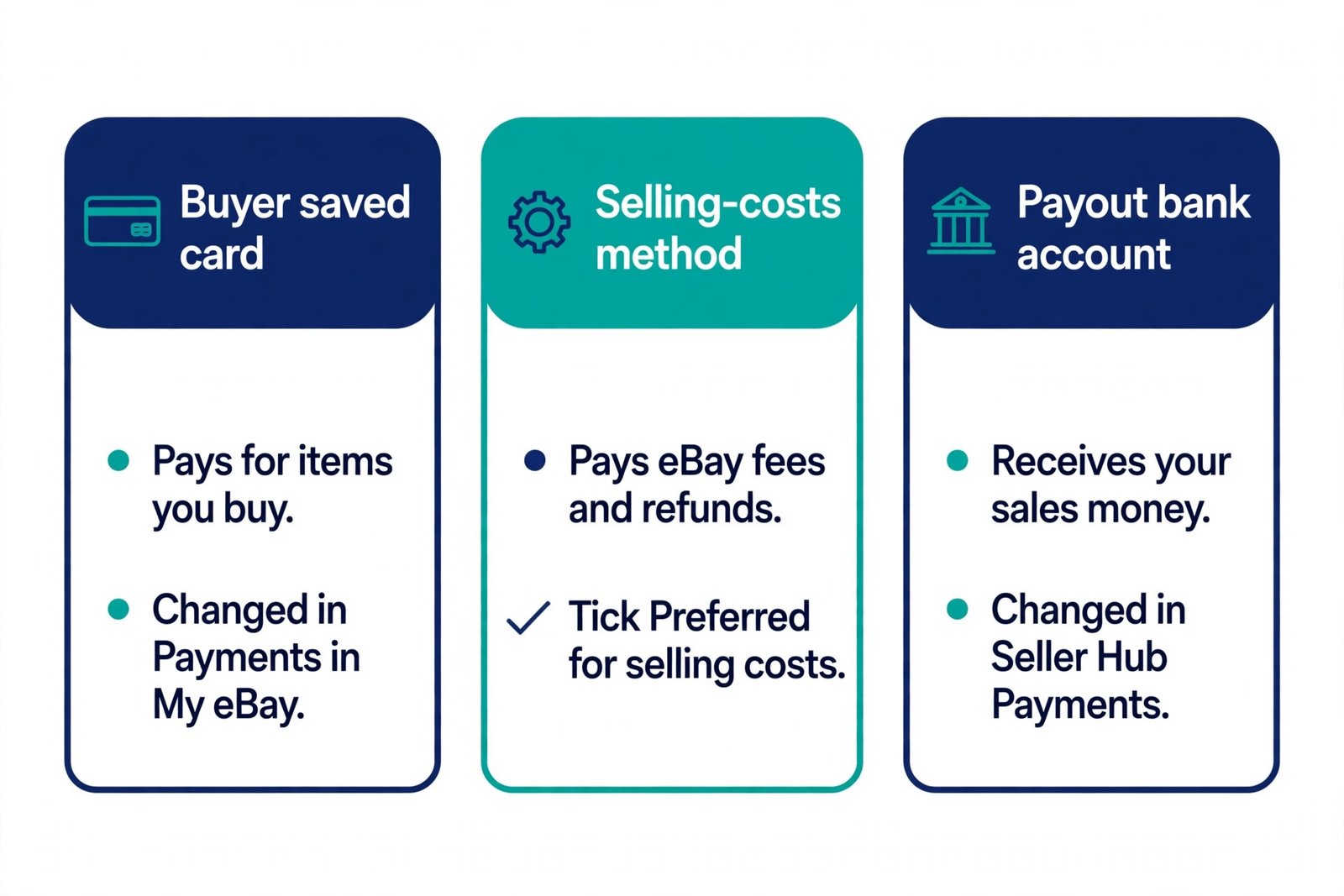
Three settings, three flows of money. Buying uses your saved card, selling costs use your preferred method, and payouts use your bank account — changing one never changes the others.
How to change eBay payment method for buying (saved cards)
This is the method most searchers mean, and it is the simplest of the three. Your saved payment methods live under Payments in My eBay, and eBay’s own Australian help page gives the update procedure in two steps. It works the same on the US, UK and Australian sites, with the payment options on offer varying slightly by country.
- Go to Payments in My eBay. Sign in, open My eBay, and choose Payments. Your saved methods are listed under Payment options.
- Select Edit next to the card you want to change. Update the card number, expiry date, CVV and billing address, then save. The billing address must match exactly what your bank has on file, including the name as it appears on your card statement — a mismatch here is the most common reason a card update fails.
- To add a new card instead, select + Add payment option. Choose Credit or debit card, enter the details, and save. You can add PayPal, Venmo, Apple Pay or Google Pay the same way, depending on what eBay offers in your country.
- To change the method for a single purchase, do it at checkout instead. On the checkout page, select the payment method shown, pick a different saved method or add a new one, and confirm. eBay saves your last-used method, so the next purchase will default to it.
A few details that catch buyers out. First, eBay secures your card and does not share the card details with the seller — the seller never sees them. Second, if you tick “Remember this card for future orders” at checkout, eBay saves it; if you do not tick it, the card is used once and not saved. Third, on orders from several different sellers you may see duplicate pending authorisations on your card or bank statement — eBay’s help page says these are authorisations, not charges, and they typically disappear within a week. Fourth, in Australia eBay lets you split a payment across two cards on orders of $500 or more, using two saved cards — that option does not exist in the US or UK, so do not go looking for it there.
If you buy and sell on the same account — most resellers do — remember that this screen also holds the card eBay can charge for your selling costs. The next section explains how to mark a method as the one eBay uses for those charges, and why you might want a different card for buying stock than for paying eBay’s fees.
How do I change my default payment method on eBay?
eBay does not have a single “default payment method” switch that covers everything, which is why this question appears in Google’s People Also Ask box and why the answer confuses people. There are two defaults, one for buying and one for selling, and they are set in different places.
For buying, your default is simply the method eBay used last, or the one you pick at checkout. There is no separate “set as default” button for purchases in the Payments screen — you change it by choosing a different method at checkout, or by removing the old method so only the new one remains. If you remove your old card and keep one card saved, that card becomes the one eBay reaches for. If you keep several cards saved, eBay will use the one you used most recently.
For selling costs, the default is explicit and has a name: “Preferred for selling costs”. This is the method eBay charges when your Available funds cannot cover what you owe — a store subscription, an insertion fee beyond your free listings, a promoted-listings charge, or a refund that exceeds your balance. To set it, follow the steps in the next section. If you never set one, eBay will still collect what you owe: its own help page says that if your preferred method fails, eBay charges the amount to your other on-file payment method, and if eBay has to remove your payment method for any reason and you have no other method on file, you will need to add a new one before you can keep selling normally.
| Default | What it controls | How to set it |
|---|---|---|
| Buying default | Which saved method pays for your next purchase | Pick a different method at checkout, or remove the old method so one remains |
| “Preferred for selling costs” | Which method eBay charges when your Available funds cannot cover selling costs | Payments in My eBay > Manage beneath the method > tick “Preferred for selling costs” > Done |
| Payout bank account | Where your sales money is sent — there is only ever one on file | Payments tab in Seller Hub > Delete the old account > Add the new one |
How to change eBay payment method for selling costs and fees
This is the seller-side change, and it is the one eBay documents most precisely. Its guide, “How to set up and change your payment method for fees and selling costs”, gives the full procedure, and it is worth following exactly, because the screen you need is not the one most sellers expect: it is Payments in My eBay, not Seller Hub, and the magic phrase is “Preferred for selling costs”.
- Go to Payments in My eBay. Sign in and open My eBay, then Payments. Your on-file payment methods are listed under Payment options.
- Select Add payment option. This is the button for adding a new method for selling costs.
- Under Select payment option, choose Credit card or Bank account. The options shown can vary by country. For a credit card, enter the card information and select Continue. For a bank account, you will be prompted to link the account by signing in to your bank or entering your bank details, then confirm them and select Continue.
- Tick “Preferred for selling costs”, then select Add. This marks the new method as the one eBay charges when your funds run short. If you do not want it to be your preferred method, skip this step — the method is still saved and available, just not the first one eBay reaches for.
To switch the preferred method to one you already have on file, you do not add anything new:
- Go to Payments in My eBay.
- Under Payment options, select Manage beneath the payment method you want to use.
- Select “Preferred for selling costs”.
- Select Done.
If a payment method on file has no Manage option beneath it, eBay says this is usually because it is not eligible to be a preferred method, or because it has expired. An expired card is the usual case: update the expiry date first, or remove the card and add it again with the new details. Note also that prepaid cards cannot be used to pay seller fees — eBay states this on its seller card page — so if your “new card” is a prepaid card, it will not work as a selling-costs method even though it may work for buying.
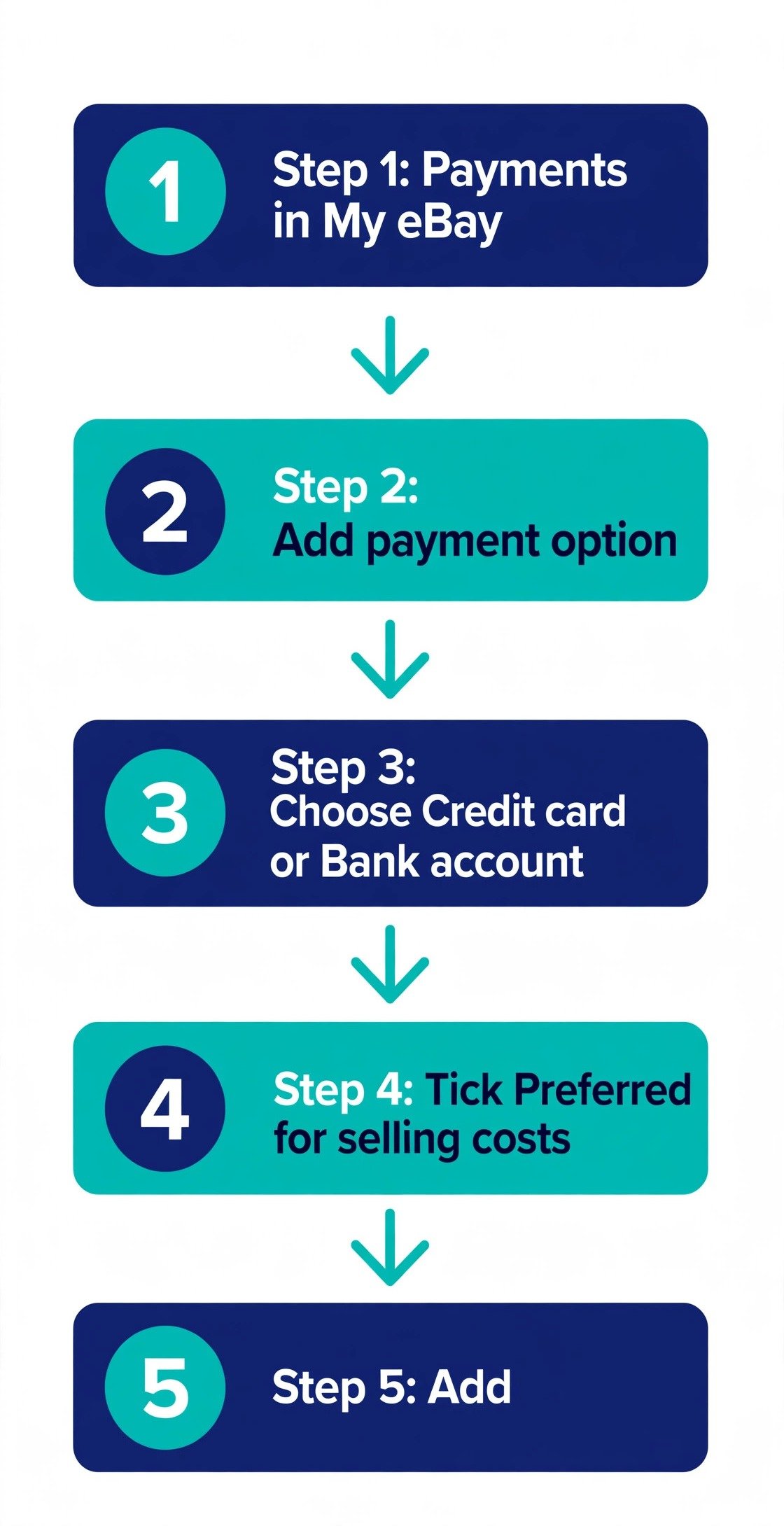
Five steps in My eBay, not Seller Hub: Payments, Add payment option, card or bank account, tick “Preferred for selling costs”, Add. To switch to a method already on file, use Manage instead.
How refunds are funded when you change your payment method
Changing your selling-costs method also changes how your refunds are funded, and this is the part sellers discover only when a refund is already due. When you refund a buyer, eBay takes the money from your Available funds first — the money sitting in your account from sales that has cleared. If that is not enough, eBay charges your preferred payment method for the rest. You can also choose the funding method for a specific refund, rather than relying on the default.
eBay’s own guide gives the procedure for changing how a refund is charged:
- Find the order in Seller Hub or My eBay.
- Select Send Refund, or open the Cancellation, Return, or Item Not Received request.
- Select “Change how you’re charged”.
- Select your preferred payment method and select Save.
The method you pick here is saved and used for future charges, so a one-off choice becomes your new default for refund funding. Two things to know before you rely on it. First, if your preferred payment method fails — an expired card, a declined charge — eBay will charge the amount you owe to your other on-file payment method, so keep at least two methods on file if you can. Second, if eBay ever has to remove your payment method for any reason and you have no other method on file to cover your selling costs, you will need to add a new one. A seller with a single card on file, whose bank replaces that card after fraud, can find themselves unable to issue a refund until a new method is added — add the replacement card before the old one stops working, not after.
The practical rule is simple: never let your account hold exactly one payment method. Keep a second card or a bank account on file, even if it is never your preferred method, so a failed charge or a removed card does not freeze your refunds, your subscription, or your ability to list.
How to change your eBay payout bank account
Your payout bank account is the third payment method, and it follows different rules from the other two — most importantly, you can only ever have one bank account on file for payouts, so changing it means deleting the old one first. eBay’s UK help page, “Updating your bank account details for payouts”, gives the procedure, and the US Seller Center page on payments and earnings confirms the same route on the US site.
- Go to Payments in Seller Hub, or Payments in My eBay. Both routes show the bank account currently set up to receive your payouts.
- Select Delete under your existing payout bank account. You need to delete this bank account before adding a new one, because you can only have one bank account on file for payouts.
- Select Add.
- Select “Log in to my bank” or “Enter manually”, then follow the instructions. Logging in to your bank verifies the account fastest. Entering details manually means typing the account number and sort code (UK) or routing and account numbers (US), and eBay will verify the account afterwards.
You can also update your payout account by selecting “Add cards and accounts”, then choosing “Payouts” — the new bank account you add replaces your existing payout bank account, without a separate delete step. Either route ends in the same place: one bank account on file, and a verification step before payouts resume.
| Detail | What eBay says |
|---|---|
| How many payout accounts | One only — delete the old account before adding a new one |
| Account type | Must be a current or business account — it cannot be a savings account |
| Name match | The name on the bank account must match the name on your eBay account, or payouts may be delayed while eBay verifies your details |
| Verification | Log in to your bank, upload a bank statement, or use microdeposits — small test deposits you confirm |
| How long it takes | Usually 2 business days for changes to be confirmed and payouts to be enabled for the new account |
| Confirmation | Once the account is verified, eBay sends a confirmation email and payouts start going to the new account |
Plan the timing. Payouts do not switch the moment you save the new account: eBay says it usually takes 2 business days for the change to be confirmed and payouts to be enabled, and during verification your payouts can be held. Do not change your payout bank account the week you need the money most — before a big restock, or while a large payout is processing. Change it when your balance is low, check that the confirmation email arrives, and only then treat the switch as done. If the name on the new account does not match the name on your eBay account — a business account under a different trading name, or a joint account — expect eBay to ask for proof, and have a bank statement ready to upload. A mismatch is the most common reason a payout change stalls, and it is entirely avoidable by checking the name before you start.
One more distinction that matters here: changing your payout bank account is not the same as changing your payout schedule, and it is not the same as requesting a payout. The schedule — daily, weekly, fortnightly or monthly — is a separate setting in the same Payments tab, and you can also request a payout on demand from there. Zyrro’s payouts guide, When Does eBay Pay Sellers?, covers schedules and holds in full. But note the November 2026 change below first, because it reset many sellers’ schedules without them asking.
What are the changes in eBay’s new payment policy for 2026?
If you opened Seller Hub in November 2026 and found your payout schedule had changed, or your sales money sitting in eBay instead of heading to your bank, this is why. On 20 October 2026 eBay emailed US sellers about updated Payments Terms of Use and new US eBay Balance Terms and Conditions, and from 4 November 2026 it began automatically enrolling eligible US sellers in eBay Balance — a stored balance inside eBay that replaces the old Spendable Funds programme. This section describes that change from eBay’s updated terms as reported by trade press (Value Added Resource first reported the seller notice on 20 October 2026, with corroborating reports from three other seller publications), because eBay announced it by email rather than on a public help page.
| What changed | Before (Spendable Funds) | From 4 November 2026 (eBay Balance) |
|---|---|---|
| Enrolment | Opt-in — sellers chose to join | Automatic for eligible US sellers, after an identity check |
| Where sale money lands | Bank account on your payout schedule | Your eBay Balance first; you withdraw it to your bank |
| Payout schedule | Daily, weekly, biweekly or monthly as you set it | Reset to on-demand withdrawals — money stays in eBay until you withdraw it or switch a schedule back on |
| Withdrawing money | Automatic on schedule | Standard withdrawal free; Express payout costs $2.00 |
| Opting out | Leave the programme | No opt-out while selling — the only way out is closing the account |
| If you never withdraw | Money arrives on schedule anyway | eBay sends available funds to your linked bank account no more than 330 days after your most recent sale |
Who is affected: eligible US individual and business sellers in good standing, aged 18 or over, enrolled automatically after eBay verifies their identity — at or after their next qualifying sale for existing sellers. Sellers registered in New Mexico are specifically excluded. UK private sellers are not part of this change: eBay introduced balance accounts for UK private sellers in 2024, so they already receive their money into an eBay balance rather than on an automatic schedule.
What did not change: your fees. Nothing in the announcement changes final value fees — most categories are still 13.6% plus $0.40 per order on the total in the US. And your payout bank account still matters: it is where Standard and Express withdrawals go, and where the 330-day sweep sends your money if you never withdraw. So the bank-account change in the previous section is still the way to move your money to a new bank — eBay Balance changes when the money leaves eBay, not where it goes.
What to do about it: open the Payments tab in Seller Hub and check two things. First, your payout schedule — if it was reset to on-demand and you want automatic payouts, switch your schedule back on yourself; eBay will not restore it for you. Second, your linked bank account — make sure it is current and in the right name, because every withdrawal now depends on it. And if you use your eBay earnings to buy stock on eBay, note that your balance can pay for your own purchases and for selling costs such as shipping labels and promoted-listings fees, which is the one genuine convenience in the change.
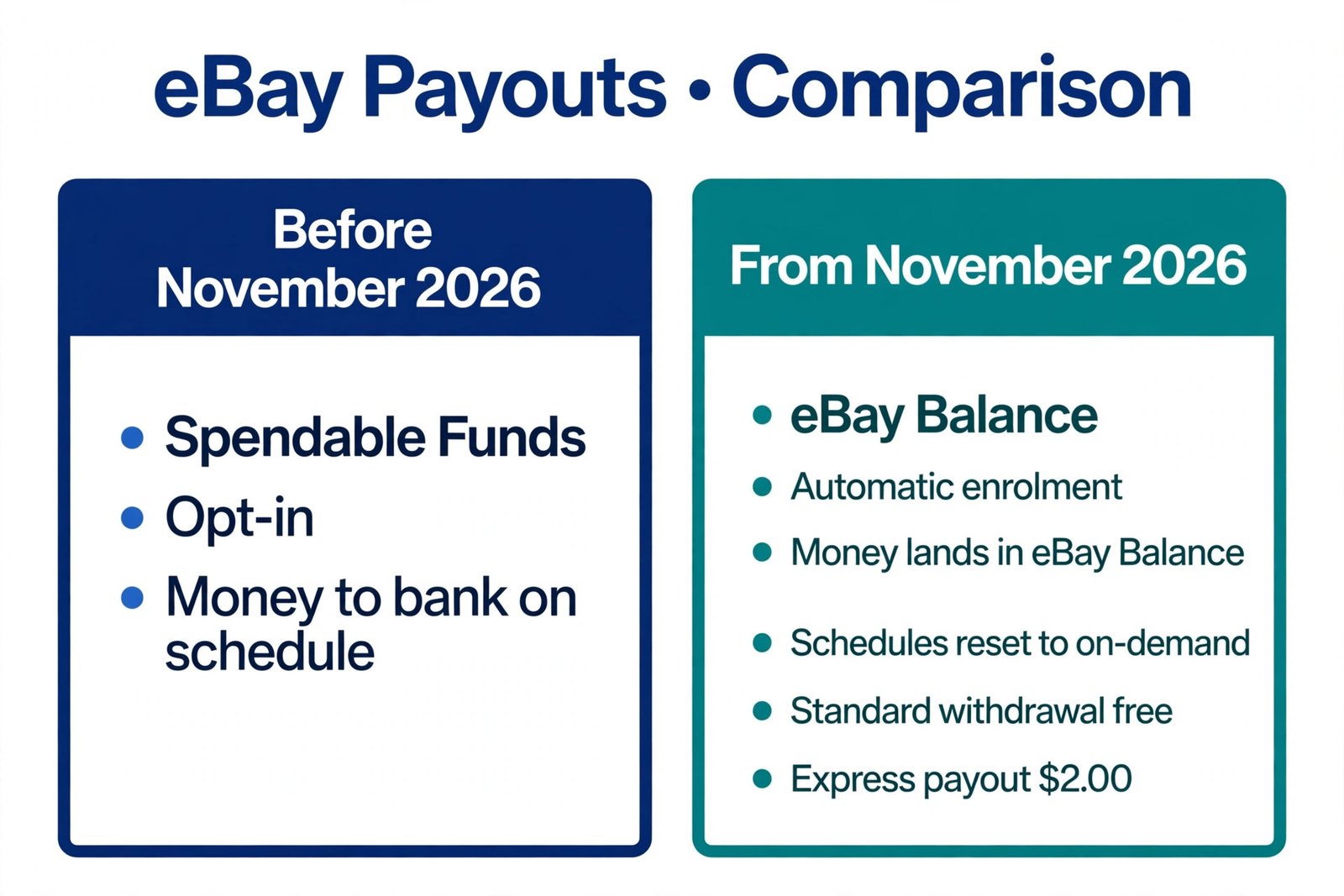
eBay Balance, from 4 November 2026: sale money lands inside eBay first, schedules reset to on-demand, Standard withdrawals stay free and Express costs $2.00. Check your schedule in Seller Hub — it will not restore itself.
Can you change the payment method on an order you already paid for?
No — not on eBay, and not on any marketplace that works the same way. Once a transaction is paid for, the funding method is locked to that payment. Changing your saved card afterwards changes what your next purchase uses; it does not re-route the money for the order you already placed. Google’s own answer to this keyword says the same thing: once a transaction is already paid for, the funding method cannot be changed unless the seller cancels the order.
If you paid with the wrong card, there is exactly one route, and it needs the seller’s cooperation:
- Message the seller and ask them to cancel the order. Explain that you paid with the wrong card and want to repurchase with the right one. Most sellers will agree if the item has not shipped yet, because a cancelled order costs them nothing if it is cancelled before dispatch.
- Wait for the cancellation to complete. The seller cancels from their orders page, and your payment is refunded to the original method — not to the new card. Refunds always go back to the method that paid.
- Change your saved payment method first, then buy the item again. Update the card in Payments in My eBay, or pick the right method at checkout when you repurchase.
For sellers, the mirror image applies: if a buyer asks you to change the payment method on their paid order, you cannot do it from your side either. The only options are to cancel the order so the buyer can repurchase, or to leave the order as it is. Do not try to work around it by refunding the buyer outside eBay and taking a fresh payment another way — that breaks eBay’s payment rules and removes the order from eBay’s buyer and seller protection entirely. And note that cancelling an order you have already been paid for is not free of consequences for your account: repeated cancellations count against your seller performance, so treat a payment-method cancellation as a favour for a genuine mistake, not a routine service.
How do I remove old credit or debit cards from my eBay account?
Removing a card is the other half of changing a payment method, and it is where most of the error messages live. The procedure itself is short; the blocks eBay puts in your way are the interesting part.
- Go to Payments in My eBay.
- Under Payment options, find the card you want to remove.
- Select Manage beneath it, then Remove — or Edit if you only need to update the expiry date. eBay may ask you to confirm, and may ask you to sign in again.
- Add a replacement first if it is your only method. eBay will typically not let you remove a method if it is the only one saved and you have pending transactions linked to it. Add the new card, make it your preferred method for selling costs if it is one, and then remove the old one.
Three blocks to expect. First, an outstanding balance: eBay’s seller card page says that if you have an outstanding balance, you will need to make a one-time payment before you can remove your payment information — you cannot walk away from what you owe by deleting the card. Second, a subscription: if you have an active eBay Store subscription or any other recurring charge, eBay needs a working payment method on file, and removing the only one will be refused until a replacement is added. Third, pending transactions: a card tied to an order that has not completed cannot be removed until that order settles. In all three cases the fix is the same — add the new method first, then remove the old one — which is why the order of operations matters more than the remove button itself.
One more note for sellers who also buy: the card you remove as a buyer is the same card on file as a seller. Removing your only card removes your selling-costs fallback too. If your sales do not cover a refund or a fee, eBay will have nothing to charge, and your account can be restricted until you add a method. Remove old cards, by all means — but never leave the account with zero methods on file.
Why can’t I add a credit or debit card to eBay?
This is the fourth question in Google’s People Also Ask box for this keyword, and it has no single answer — a card can be refused for half a dozen different reasons, and eBay’s error message rarely says which one. Work through the table below in order, because the causes are listed from most to least common.
| Reason eBay refuses the card | How to tell | Fix |
|---|---|---|
| Card details do not match your bank’s records | eBay declines the card immediately on saving | Check the card number, expiry date and CVV, and the name and billing address exactly as they appear on your card statement — a single wrong digit or an old address is enough |
| Card expired or not yet activated | A new card that has never been used anywhere | Activate the card with your bank first, then add it to eBay |
| Insufficient funds or credit | eBay’s verification charge is declined | Make sure the account can cover a small verification charge, then try again |
| Prepaid card used for seller fees | Card works for buying but not as a selling-costs method | Use a regular credit or debit card or a bank account for selling costs — prepaid cards cannot pay seller fees |
| Bank blocking the transaction | Card works elsewhere but not on eBay | Call your bank and ask whether it is blocking eBay or online marketplace transactions, and ask it to allow them |
| Browser too old or insecure | eBay warns about your browser when you open Payments | Update your browser before adding payment methods — eBay refuses to accept card details over an insecure connection |
| Two-factor authentication not completed | Your bank sends a code and the flow stalls | Complete your bank’s verification step — password, SMS code or banking-app approval — and do not close the window until eBay confirms the card is saved |
| Too many failed attempts | Card worked before, now every attempt fails | Wait, check the details carefully, and try once — repeated failed saves can trigger a temporary block |
If none of these fits, the problem may be on eBay’s side rather than yours: a payment method that eBay itself has removed, or an account restriction. eBay’s own selling-costs guide says that if eBay needs to remove your payment method for any reason, you will need to add a new one — and if the new one is refused too, that is a support conversation, not a settings problem. Contact eBay support with the exact error message and the time it appeared; “my card won’t add” without the error text will get you a generic answer.
Does changing your eBay payment method cost anything?
No. Changing any of the three payment methods is free: there is no fee to add a card, remove a card, switch your preferred method for selling costs, or change your payout bank account. eBay charges no fee for any of these changes on any of its help pages, and none of the official pages for this guide lists a charge. What can cost you money is not the change itself but what happens around it — a payout held for two business days while a new bank account is verified, or an Express payout fee if you want your money immediately under the new eBay Balance system.
Because the change is free, your profit on a sale is identical before and after it. The worked examples below use Zyrro’s verified fee rates — US final value fee 13.6% plus $0.40 per order, UK business 12.9% plus 0.35% regulatory fee plus £0.40 plus 20% VAT on fees, UK private sellers no final value fee — and the same examples run through Zyrro’s eBay Fee and Profit Calculator.
| Sale | Revenue | eBay fees | Profit before change | Profit after change |
|---|---|---|---|---|
| US $100 sale, $40 cost, $10 buyer postage, $10 label | $110 | $15.36 (FVF $14.96 + $0.40) | $44.64 | $44.64 — change costs $0 |
| US $50 sale, $15 cost, $10 buyer postage, $10 label | $60 | $8.56 (FVF $8.16 + $0.40) | $26.44 | $26.44 — change costs $0 |
| UK £100 business sale, £40 cost, £5 postage, £5 label | £105 | £17.18 (FVF £13.55 + reg £0.37 + £0.40 + VAT £2.86) | £42.82 | £42.82 — change costs £0 |
| UK £100 private sale, £40 cost, £5 postage, £5 label | £105 | £0 | £60.00 | £60.00 — change costs £0 |
The one real cost in this whole topic is the Express payout under eBay Balance: a US seller who takes the $44.64 profit from the first example out immediately with Express pays $2.00 and keeps $42.64, while a Standard withdrawal is free and keeps the full $44.64. That $2.00 is not a fee for changing your payment method — it is the price of speed — but it is the only number in this guide where a payment choice changes what lands in your hand, so it is worth knowing before you tap Express on a Friday afternoon.
How to change payment method on eBay app?
The short answer is that you can, but the desktop site is the reliable route for the seller-side changes. eBay’s own help pages describe the desktop flow — Payments in My eBay, Seller Hub — and do not publish a separate app procedure for changing a payout bank account or a preferred selling-costs method. Seller guides report mixed results on the app, and the app’s menus change between versions, so treat the guidance below as what sellers report rather than what eBay publishes.
| Change | On the eBay app | On desktop (recommended) |
|---|---|---|
| Saved card for buying | Profile > Account settings > Payments, or change the method at checkout in the app | Payments in My eBay > Edit next to the card |
| Preferred method for selling costs | Reported as available in some app versions under Payments; not documented by eBay | Payments in My eBay > Manage > “Preferred for selling costs” > Done |
| Payout bank account | Not reliably available — sellers report being sent to the desktop site | Payments tab in Seller Hub > Delete old account > Add new one |
| Payout schedule / on-demand withdrawal | Payments tab in the app shows the balance and withdrawal option | Payments tab in Seller Hub |
If you only have a phone, the practical workaround is the one sellers use for every other desktop-only eBay setting: open eBay in your phone’s browser, request the desktop site, and follow the desktop steps. It is slower than the app, but it shows the full Payments screens — including the Manage option beneath a payment method, which is the button the app most often hides. Do the change once, properly, on desktop, rather than three times in the app wondering whether it saved.
PayPal on eBay in 2026: what sellers and buyers need to know
Half the confusion around changing a payment method on eBay is really confusion about PayPal, because PayPal used to be how eBay worked and now it is not. eBay moved to managed payments between 2018 and 2021, and under managed payments eBay handles all transactions directly: it collects the buyer’s payment, deducts its fees, and sends the rest to the seller’s linked bank account. Sellers no longer receive funds through PayPal at all, and no legacy steps for “unlinking PayPal as a seller payout method” apply any more — there is nothing to unlink, because PayPal is not connected to seller payouts in the first place.
What PayPal still is on eBay: a buyer checkout option. Buyers can pay with PayPal, PayPal Credit, cards, Apple Pay and Google Pay, depending on the listing site. If you previously connected a PayPal account to eBay for buying, it may still appear in your saved payment details, and you can update or remove it through Payments in My eBay like any other saved method: find PayPal under Payment options, select Manage, and remove it. Removing it as a buyer does not affect your selling at all — and adding it as a buyer does not give you a way to receive payouts through it.
For sellers, the PayPal question that actually matters is the reverse: can buyers still pay you with PayPal? Yes — you do not choose which payment methods buyers see. Payment options are automatically added to your listings and shown at checkout, so a buyer who wants to pay with PayPal can do so, and the money still reaches you through eBay’s managed payments to your bank account. You do not need a PayPal account to receive it, and you cannot opt out of buyers paying with PayPal. If a buyer messages you asking to pay by PayPal directly, outside eBay, that is a different matter: payments outside eBay remove the order from eBay’s protection for both sides, and eBay’s rules prohibit it.
Troubleshooting: payment method changes that fail
| Problem | Likely cause | What to do |
|---|---|---|
| New card will not save | Details mismatch, expired card, bank block, or browser too old | Check every field against your card statement, activate the card, call your bank, update your browser — in that order |
| No Manage option under a saved method | Method not eligible as a preferred method, or expired | Update the expiry date, or remove the method and add it again with current details |
| Cannot remove the old card | Only method on file, outstanding balance, active subscription, or pending transaction | Add the replacement first, settle any outstanding balance, then remove the old card |
| Payouts stopped after changing bank account | New account still being verified (usually 2 business days), or name mismatch | Wait 2 business days, check for eBay’s verification email, upload a bank statement if asked |
| Payout schedule reset to on-demand | eBay Balance enrolment, November 2026 | Switch your schedule back on in the Payments tab in Seller Hub — it will not restore itself |
| Money sitting in eBay instead of going to the bank | eBay Balance holds funds until you withdraw | Request a Standard withdrawal (free) or Express ($2.00) from the Payments tab |
| Buyer paid with the wrong card | Funding method locks at payment | Cancel the order with the seller’s agreement, refund to the original method, repurchase with the right card |
| Refund charged to the wrong method | Preferred method was not updated before the refund | Use “Change how you’re charged” on the refund screen; the choice is saved for future charges |
Checklist before you change anything
Five minutes of preparation saves the two most common failures in this guide — a removed card with nothing behind it, and a payout change made at the worst possible moment.
- Work out which of the three methods you mean. Buying, selling costs, or payouts — each changes in a different place, and changing the wrong one fixes nothing.
- Add the new method before removing the old one. Never leave your account with zero payment methods on file, and never remove the only card while a subscription or a pending transaction depends on it.
- Check the name on the new bank account matches your eBay account name. A mismatch is the most common reason a payout change stalls for days.
- Time a payout-bank change for a quiet week. Verification usually takes 2 business days, and payouts can be held in the meantime — do not switch banks the week you need the money.
- After the change, check the confirmation. For payouts, wait for eBay’s confirmation email. For selling costs, open Payments and confirm the right method shows “Preferred for selling costs”. For buying, place a small test of the new method at your next checkout and confirm it is the one charged.
- Check your payout schedule too. If eBay Balance reset it to on-demand in November 2026, switch it back on in the Payments tab if you want automatic payouts — or leave it on-demand and withdraw manually.
Conclusion
Changing your payment method on eBay is three small jobs, not one, and the only hard part is knowing which job you are doing. For buying, it is Payments in My eBay and the Edit button next to a saved card. For selling costs, it is the same screen with the words “Preferred for selling costs” — the method eBay charges when your sales do not cover your fees, and the method that funds your refunds. For payouts, it is the Payments tab in Seller Hub, where you delete the old bank account, add the new one, and wait the usual 2 business days for verification. None of the three costs anything to change, and none of them changes your profit on a sale — a $100 sale still leaves $44.64 in the US and £42.82 for a UK business seller either way.
The one change that does affect your money is the one eBay made for you in November 2026: eBay Balance now holds US sellers’ sale money inside eBay, resets payout schedules to on-demand, and charges $2.00 for an Express withdrawal while Standard stays free. If your money has stopped arriving on its old schedule, that is why — and the fix is a two-minute visit to the Payments tab, not a new bank account. Keep two payment methods on file, keep the names matching, and change the payout bank only in a quiet week. Zyrro’s eBay Fee and Profit Calculator and the eBay seller tools hub are there when you want to check what any of this does to your next sale’s profit, and the payouts guide When Does eBay Pay Sellers? covers schedules and holds in full. If you are renaming other parts of your account at the same time, the same careful approach applies — see How to Change Your eBay Username and How to Change Your eBay Store Name before you touch those fields.
Frequently asked questions about changing your eBay payment method
How do I change my default payment method on eBay?
For buying, pick a different method at checkout — eBay uses your most recently used saved method. For selling costs, go to Payments in My eBay, select Manage beneath the method, tick “Preferred for selling costs” and select Done. Your payout bank account is separate: change it in the Payments tab in Seller Hub.
What are the changes in eBay’s new payment policy for 2026?
From 4 November 2026 eBay enrols US sellers in eBay Balance, which replaces Spendable Funds. Sale money lands in your eBay Balance, and payout schedules reset to on-demand withdrawals. Standard withdrawals are free, Express payouts cost $2.00. There is no opt-out except closing your account, and unwithdrawn funds sweep to your bank 330 days after your most recent sale.
How do I remove old credit or debit cards from my eBay account?
Go to Payments in My eBay, find the card under Payment options, select Manage beneath it and choose Remove. Add a replacement first if it is your only method, because eBay will not let you remove a method tied to pending transactions. If you have an outstanding balance, eBay requires a one-time payment before you can remove your payment information.
Why can’t I add a credit or debit card to eBay?
The most common causes are card details that do not match your bank’s records, an expired or unactivated card, insufficient funds for the verification charge, or your bank blocking transactions. Prepaid cards cannot pay seller fees, so they fail as a selling-costs method. Check every field against your card statement, activate the card, call your bank, and update your browser.
How to change payment method on eBay app?
You can change a saved card for buying in the app, or by picking a different method at checkout. For the seller-side changes — the preferred method for selling costs and the payout bank account — eBay documents only the desktop flow. Open eBay in your phone’s browser, request the desktop site, and follow the desktop steps.
How do I change my PayPal payment method on eBay?
PayPal is a buyer checkout option on eBay, not a seller payout method — sellers are paid to a bank account, never through PayPal. To change or remove PayPal as a buyer, go to Payments in My eBay, find PayPal under Payment options, select Manage and update or remove it. Removing PayPal as a buyer does not affect your selling.