How to Delete a Product on TikTok Shop: Seller Center Steps, Deactivate vs Delete & Recovery

Short answer: To delete a product on TikTok Shop, sign in to Seller Center, go to Products > Manage Products, find the product, choose Delete, and confirm. Deleting removes it from your storefront, but it is not always permanent: deleted products sit in the Deleted tab, where Recover returns them to Deactivated. Deactivate instead if you might sell it again.
First, check which “delete” you mean
“Delete a product on TikTok Shop” means two completely different things, and Google itself mixes them up: the AI Overview for this search answers the creator version and then asks whether you meant the seller version. If you follow the wrong set of steps, you will remove a product from a showcase while the listing keeps selling, or delete a listing while the showcase link stays live. Work out which one you are doing before you tap anything. At Zyrro, we checked TikTok’s own Seller University pages on 14 November 2026, so every step below matches what TikTok actually shows today.
| You want to… | What it does | Where it happens | Section |
|---|---|---|---|
| Delete a product listing (seller) | Removes the product from your shop catalog and storefront so nobody can buy it | Seller Center > Products > Manage Products | How to delete a product on TikTok Shop |
| Remove a product from your Showcase (creator) | Takes the product out of the showcase on your profile; the seller’s listing stays live and other creators can still promote it | TikTok app > Profile > Creator Tools > TikTok Shop for Creator > Manage Showcase | How to remove a product from your TikTok Shop Showcase |
| Hide a product for now (seller) | Stops sales without deleting anything, so you can bring it back in one tap | Seller Center > Products > Manage Products > Deactivate | Delete vs deactivate on TikTok Shop |
Most sellers searching for how to delete a product on TikTok Shop mean the first row: removing one of their own listings from Seller Center. That is what the main guide below covers. The showcase steps are covered separately near the end, because creators searching the same phrase land on the same results and need the other answer.
Delete vs deactivate on TikTok Shop: which one do you need?
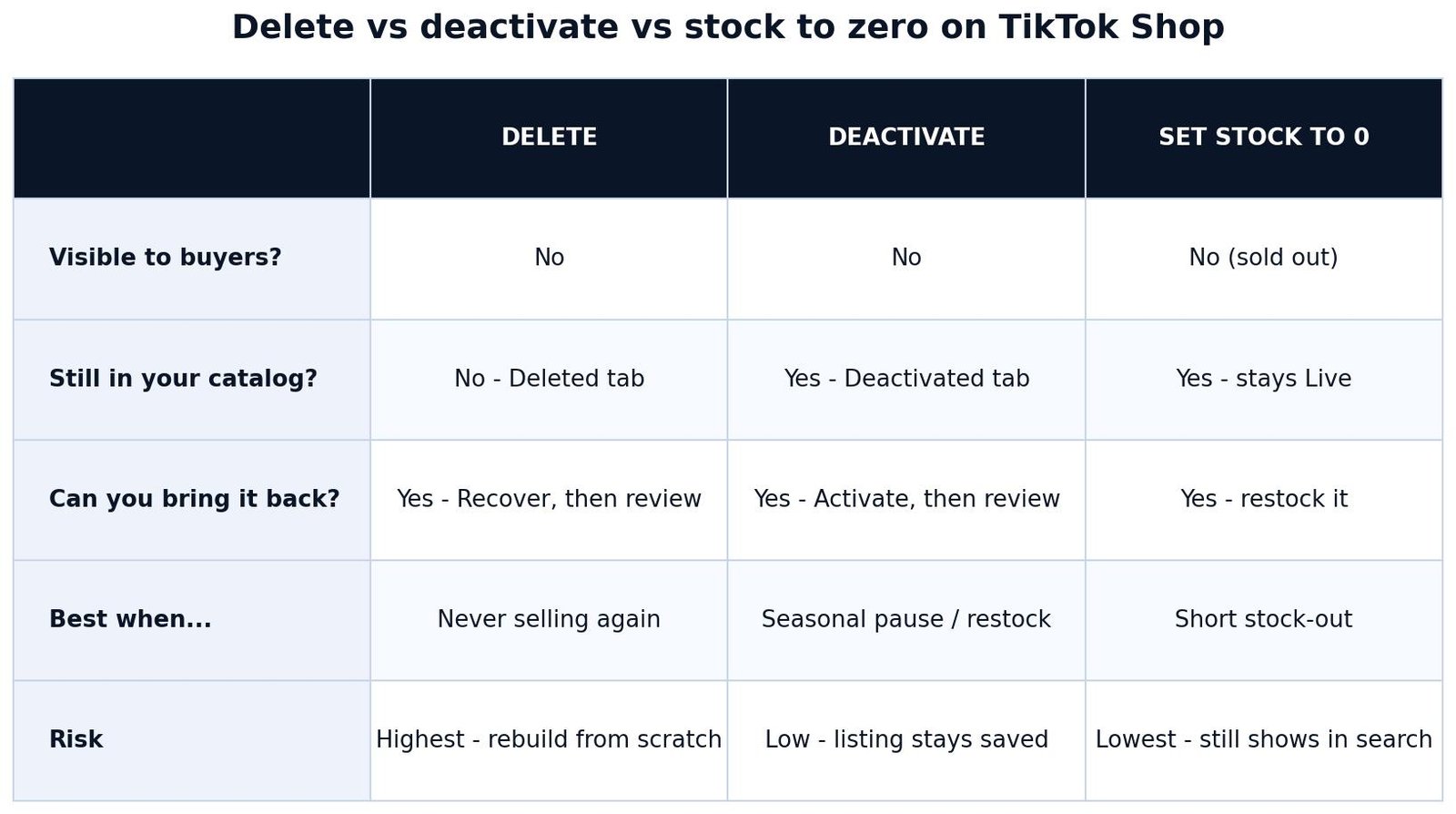
Deleting and deactivating both take a product off your storefront, and sellers confuse them constantly. The difference is what survives. Deleting removes the listing from your active catalog. Deactivating keeps the listing saved in your catalog but hidden from buyers, so you can switch it back on later. TikTok’s own product-status table lists both as standard actions on live products, side by side with Edit, Copy, and Change Price & Stock, which tells you they are meant as a pair of choices, not two ways of doing the same thing.
| Delete | Deactivate | Set stock to 0 | |
|---|---|---|---|
| Visible to buyers? | No | No | No (shows as sold out) |
| Still in your catalog? | No — moves to the Deleted tab | Yes — sits in the Deactivated tab | Yes — stays Live with zero stock |
| Can you bring it back? | Yes, with Recover — it returns to Deactivated, then needs reactivating and review | Yes — Activate sends it back for review | Yes — restock and it sells again |
| Best when… | The product will never sell again: discontinued, banned, or a listing you created by mistake | Seasonal pause, waiting on new stock, price or photo rework, or a dispute is open | A short stock-out where you expect a delivery within days |
| Risk | Highest: if you skip the backup step, rebuilding the listing from scratch takes real time | Low: the listing, photos, and settings stay saved | Lowest, but a sold-out listing still shows in search and can collect bad “out of stock” signals |
As a rule of thumb, deactivate when there is any chance the product comes back. Delete when you are sure it will not. A product tied to an open claim, an active promotion, or a creator affiliate campaign should never be deleted mid-flight: deactivating keeps the record in place while the dispute or campaign finishes. Deleting dead products does keep your catalog leaner and easier to manage, which is a real benefit once a shop passes a few dozen listings — but only after the backup checks in the next section.
How to delete a product on TikTok Shop
Deleting a product takes about a minute in Seller Center on desktop. The route below follows TikTok’s own Seller University article “Add and Manage Product”, which lists Products > Manage Products as the entry point for deleting a product, one by one or in batch.
- Sign in to Seller Center at seller.tiktok.com with the account that owns the shop. If you are on a team account, make sure your role has permission to manage the catalog — sellers report access errors when a staff account without catalog rights tries to delete.
- Go to Products > Manage Products. This is the upgraded Manage Products page, which shows your listings in tabs by status: Live, Reviewing, Needs attention, Suspended, Frozen, Rejected, and Deactivated.
- Find the product. Use the search box (Seller SKU, product name, or product ID) or filter by category, price, or status. Check the tab you are on: the product you want is usually under Live or Deactivated.
- Select Delete on the product’s row. TikTok shows a confirmation prompt — this is your last stop before the listing leaves the active catalog.
- Confirm the deletion. The product moves out of your active catalog and into the Deleted tab.
- Verify it is gone. Open the Live tab and confirm the product is no longer listed, then check your shop from a buyer view to confirm it no longer appears in the storefront.
That last step matters more than it sounds. Sellers who skip verification sometimes discover days later that the product is still showing in search results while they assumed it was gone. A quick check of the Live tab plus a buyer-side look at your shop closes the loop. If the product still appears after a few minutes, it is usually search indexing catching up rather than a failed deletion — but confirm in the Deleted tab that the product is actually there before assuming so.

How to delete a product on TikTok Shop on iPhone
TikTok’s help pages describe the web Seller Center route above, and there is no separate iPhone-only deletion flow published. On an iPhone, open seller.tiktok.com in Safari or Chrome, sign in, and follow the exact same steps: Products > Manage Products, find the product, Delete, confirm. The TikTok app also has a Seller Center entry that opens the same Manage Products page, so the taps are identical either way. If the mobile page feels cramped, switch to the desktop site view in your browser — the table with the Delete action is easier to use with the full layout.
One iPhone trap to avoid: do not confuse this with removing a product from your Showcase in the TikTok app, which is a creator action, not a seller deletion. Showcase removal is covered in its own section below. If you are in the TikTok app and you see Profile, Creator Tools, and Manage Showcase, you are in the creator flow, not Seller Center, and nothing you delete there touches your shop catalog.
Before you press Delete: 5 checks
Deleting is quick; undoing a rushed deletion is slow. Run these five checks first. They take two minutes and cover every way sellers report getting burned by a delete.
- Pending orders: make sure the product has no unfinished orders. Seller guides report that products with open orders cannot be deleted until those orders are fulfilled or cancelled, so finish or cancel them first. If an order is already shipped, it needs a return or refund instead — deleting the listing does not cancel the order. Our guide to how to cancel an order on TikTok Shop covers the cancellation side.
- Active promotions: check whether the product is in a live discount, flash sale, or Buy More Save More deal. A product in a promotion should be pulled from the promotion first, or the campaign will keep pointing at a listing that no longer exists.
- Creator and affiliate links: if creators are promoting the product under TikTok’s affiliate programme, deleting the listing breaks their links and ends their commission on that product. Tell the creators first, or deactivate instead until the campaign ends.
- Back up the listing: record the Seller SKU, price, description, and product photos in a document outside TikTok. If you ever relist the product as a new entry, this backup is the difference between a five-minute rebuild and starting from zero.
- Download your sales reports: save the product’s sales and order history before deleting. TikTok does not publish a promise that order history stays easily reachable after a deletion, so a downloaded report is cheap insurance for billing, tax, and claims.
Think of the backup as the price of deleting. Deactivation costs nothing and keeps everything saved; deletion is only free if you never need the listing again. Sellers who skip the backup usually discover the cost weeks later, when a supplier restocks the item and the listing has to be rebuilt photo by photo.
How to delete a failed product on TikTok Shop
A “failed” product is one whose information does not comply with TikTok’s product guidelines — usually a rejected listing or a rejected update. TikTok’s own status table is clear about what you can do with one: sellers can resubmit a failed product after making adjustments. That gives you two options, and deleting is only the right one for one of them.
If the product itself is fine and only the listing broke a rule — a banned word in the title, a wrong category, a missing attribute — fix it and resubmit. Open the product from the Needs attention or Suspended tab, read the reason TikTok gives, correct the field, and submit again. If an update is rejected, the previously approved version may remain live, so a failed update does not always mean the product is off sale.
If the product cannot comply at all — it is a restricted item you should not have listed, or the fix would change the product into something else — delete it from the same Manage Products list. Failed products support the Delete action just like live ones. Deleting a failed product is also the tidy option when a listing has failed review several times and keeps coming back: each failed submission costs review time, and a dead listing sitting in your Needs attention tab hides the products that actually need work.
How to delete a frozen product on TikTok Shop
Frozen is the status sellers fear most, and it is the one where deleting may not be available at all. TikTok’s Seller University defines frozen products as products that are illegal, harmful, or counterfeit, and states plainly that for these products sellers cannot resubmit or modify them. A frozen product is no longer active, cannot be edited, and is not available for sale.
What that means in practice: open the Frozen by platform tab in Manage Products and look for the Delete action on the product’s row. If TikTok offers it, you can delete the frozen listing like any other. If no Delete option appears, the listing is platform-held and you cannot remove it yourself. TikTok’s partner documentation carries a related rule for the Indonesia market — that sellers can only delete products that are not frozen on all listing platforms — which suggests frozen status does block deletion in at least some markets. TikTok publishes no US-specific rule saying frozen products can or cannot be deleted, so treat the button as the answer: present means deletable, absent means held.
If the product is frozen by mistake, deleting is the wrong fix anyway. A frozen listing needs an appeal through Seller Center, not a delete. Appeal with the evidence that the product is legal and compliant — supplier invoices, brand authorisation, or certification, depending on the reason given. If the appeal succeeds, the product returns to your control and you can then edit, deactivate, or delete it normally. If the appeal fails, the listing stays frozen and off sale, and there is nothing further to delete: buyers already cannot see or buy it.
Can you recover a deleted product on TikTok Shop?
Yes — and this is the fact most seller guides get wrong. Several guides state that deleted products cannot be recovered and must be recreated from scratch. TikTok’s own Seller University article says the opposite: deleted products appear under a Deleted tab, and “sellers can return deleted products to the deactivated product list by clicking Recover”. The recovery path is built into Seller Center, not a support favour.
To recover a deleted product, go to Products > Manage Products, open the Deleted tab, find the product, and select Recover. The product returns to your Deactivated list. It does not go straight back on sale: from Deactivated you select Activate, and the listing goes through product review again before buyers can see it. Budget for that review time, and do not promise a restock date to customers until the product is live again.
Two honest limits apply. First, TikTok does not publish whether reviews and sales history survive a delete-and-recover cycle, so do not assume your old reviews will reappear with the listing — the backup step above exists for exactly this reason. Second, recovery only works for products you deleted yourself. Frozen and suspended products are platform-held, and Recover does not apply to them. If a product you deleted does not appear in the Deleted tab, check that you are signed in to the right shop account — team members with limited permissions may not see the full product list.
How to remove a product from your TikTok Shop Showcase
This is the creator-side removal that Google’s AI Overview answers for this search, and it is worth covering because so many sellers and creators search the same phrase. Removing a product from your Showcase takes it off your TikTok profile’s shopping tab. It does not delete the seller’s listing, and it does not stop other creators from promoting the same product.
- Open the TikTok app and go to your Profile.
- Tap the menu, then go to Creator Tools (or TikTok Studio) and open TikTok Shop for Creator.
- Open Manage Showcase or Your Showcase to see the products on your profile.
- Find the product, tap the three dots on it, and select Remove from Showcase or Remove product.
- Confirm, then check your profile to confirm the product is gone from the showcase.
Sellers should know this flow exists because creators ask about it — and because it is the source of a common misunderstanding. A creator telling you they “deleted the product” usually means they removed it from their showcase. The listing is still live in your Seller Center, still in search, and still selling. If you actually want it off sale, you need the Seller Center deletion above, not a showcase removal. Conversely, if a creator’s showcase still shows a product you deleted from Seller Center, the showcase entry should clear once the listing is gone — if it lingers, ask the creator to remove it from Manage Showcase.
How to delete products in bulk on TikTok Shop
Deleting one product is a row action. Deleting dozens is a batch job, and TikTok gives you two ways to do it. The first is the Batch Tool inside Manage Products: TikTok’s Seller University article says you can edit, delete, copy, deactivate, and change price and stock “one by one or in batch”, and the batch editor lets you select up to 50,000 products by filter, download a template, edit it, and upload it back. That is the route for a real catalog clean-up, such as removing a whole discontinued range.
The second is Seller Assistant, the natural-language helper on the upgraded Manage Products page. You describe the change in plain words — for example, “deactivate the selected products” — and it shows a preview of the affected products and new values before anything is submitted. Nothing changes until you review the preview and confirm. Seller Assistant currently supports bulk changes to stock, retail price, listing status, and product titles, and a single action can process up to 50 products at a time. If more than 50 products match, finish the first group and continue with the rest.
For bulk work, deactivate first and delete second. Use Seller Assistant or the Batch Tool to deactivate the whole set, check the storefront the next day to confirm nothing you wanted to keep went dark, and only then delete the batch. A bulk delete with no preview step is how sellers wipe a live bestseller by selecting the wrong filter, and the Recover path, while real, still costs a review cycle per product. The five pre-delete checks above apply twice over in bulk: pending orders, live promotions, and creator links must be checked across the whole set, not just one listing.
What deleting a product costs you
Deleting a listing costs no fee by itself. TikTok charges no separate listing fee: its referral fee is charged per order, not per listing, so there is no charge for deleting and no refund for fees already paid on past orders. The real cost is the profit the product would have earned if it had stayed live. That is the number to calculate before you delete a product that still sells at all.
The worked examples below use TikTok’s verified fee rates: a 6% referral fee in the US, calculated on the customer payment plus platform discount minus tax, with the base including buyer-paid shipping; and a 9% commission fee in the UK, inclusive of VAT. The fulfilment figure is the lightest FBT tier, $4.28 per unit, from TikTok’s rate card effective 13 July 2026. Cost and postage figures marked with an asterisk are example assumptions, not TikTok data. Check your exact numbers in the TikTok Shop Fee & Profit Calculator before deciding — the calculator uses the same rates and lets you change the fee if your category pays a different one.
| Example | Revenue | Platform fee | Other costs | Profit per sale | Profit lost at 20 sales/month |
|---|---|---|---|---|---|
| US $40 product ($22 cost*, $5 buyer postage, $4.28 FBT) | $45.00 | $2.70 referral (6%) | $26.28 | $16.02 | $320.40/month |
| US $50 product ($25 cost*, $5 buyer postage, $4.28 FBT) | $55.00 | $3.30 referral (6%) | $29.28 | $22.42 | $448.40/month |
| UK £30 product (£15 cost*, £3 buyer postage, self-fulfilled) | £33.00 | £2.97 commission (9%) | £15.00 | £15.03 | £300.60/month |
Read the table as a deletion test. If the product sells 20 units a month, deleting the US $40 listing throws away $320.40 of monthly profit, and deleting the UK £30 listing throws away £300.60. That is the cost of deleting a live product by mistake, or of deleting one you meant only to pause. A seasonal product deleted in November and rebuilt in March loses four months of those figures plus the rebuild time. Deactivating the same product costs nothing: the profit pauses while it is hidden and resumes the day you reactivate it.

Two fee details catch sellers out around deletions. First, if a deleted product had a refunded order, the US refund administration fee still applies to that refund: 20% of the referral fee, capped at $5 per SKU. On the $40 example above, that is 20% of $2.70, or $0.54. Deleting the listing does not erase the refund or its fee. Second, deleting a product does not cancel its pending orders or its payout timing. Money from orders placed before the deletion still follows the normal settlement schedule — deleting a listing is not a way to speed up or delay a payout. Our guide to when TikTok Shop pays sellers covers the settlement rules.
Troubleshooting: why can’t I delete a product on TikTok Shop?
Most “delete doesn’t work” reports trace back to one of these causes. Check them in this order before contacting support, because the fix for each is different.
| Problem | Likely cause | Fix |
|---|---|---|
| No Delete button on the product row | Frozen or suspended status — the listing is platform-held | Check the status tab. Frozen products cannot be edited or resubmitted; appeal through Seller Center if the freeze is wrong |
| Delete fails or the option is greyed out | Pending orders on the product | Fulfil or cancel the open orders first, then try again — seller guides report deletion is blocked while orders are unfinished |
| “You don’t have permission” error | Team account without catalog rights | Ask the shop owner or an admin to delete it, or to grant your account catalog-management permission |
| Product still visible after deleting | Search indexing lag, or the wrong listing was deleted | Confirm the product is in the Deleted tab; check the buyer store view again after a few hours; if it is still live, it was not the listing you deleted |
| Deleted product still in a creator’s showcase | Showcase entries clear separately from listings | Ask the creator to remove it from Manage Showcase, or wait for the showcase to refresh after the listing is gone |
| Can’t find the product at all | Wrong status tab, wrong shop account, or a search filter is hiding it | Clear all filters, check the All tab, and confirm you are signed in to the right shop |
If none of these fits, take a screenshot of the product row and the status tab before contacting TikTok Shop support through Seller Center. Support can see the listing’s status history, which is the fastest way to find out whether a platform hold, a pending order, or a permissions issue is blocking the delete. Do not try to force the issue by deleting the whole shop or removing the product’s images — neither removes the listing, and both create new problems.
How to delete a product on TikTok Shop: the short version
If you skipped to the end, here is the whole guide in one paragraph. Work out whether you mean deleting a seller listing or removing a product from a creator showcase, because the steps are different. For a listing, sign in to Seller Center, open Products > Manage Products, find the product, choose Delete, and confirm — then verify in the Live tab and in your buyer-side store view. Deactivate instead of deleting whenever the product might sell again, and back up the SKU, price, description, and photos before you delete anything. Deleted products are not gone forever: the Deleted tab has a Recover button that returns them to your Deactivated list. And remember what deleting costs: a $40 product earning $16.02 per sale throws away $320.40 a month at 20 sales, so delete dead listings, not live ones.
At Zyrro, our TikTok Shop seller tools cover the money side of these decisions: the TikTok Shop Fee & Profit Calculator prices any product before you list, pause, or delete it, and our guides to adding products and changing prices without losing money cover the listing jobs sellers do most often. Delete with a backup, deactivate when in doubt, and let the fee maths — not the tidy-catalog urge — make the call.
FAQs: how to delete a product on TikTok Shop
How do I cancel an item on TikTok Shop?
Cancel the order from Orders in Seller Center before it ships, choosing the reason that matches the situation. Once an order has shipped, cancellation is no longer possible and the buyer needs a return or refund instead. Cancelling can affect your seller metrics, so cancel only when the order genuinely cannot be fulfilled.
How to delete a failed product on TikTok Shop
Open Products > Manage Products in Seller Center and find the failed product under the Needs attention tab. If the listing can be fixed, correct the field TikTok flagged and resubmit it for review. If the product cannot comply with TikTok’s guidelines, select Delete on the product row and confirm.
How to delete a frozen product on TikTok Shop
Open the Frozen by platform tab in Manage Products and look for the Delete action on the product row. Frozen products are illegal, harmful, or counterfeit listings that TikTok says sellers cannot resubmit or modify. If no Delete option appears, the listing is platform-held; appeal through Seller Center if the freeze is a mistake.
How to remove a product from TikTok Shop Showcase
Open the TikTok app, go to your Profile, then Creator Tools or TikTok Studio, then TikTok Shop for Creator, then Manage Showcase. Find the product, tap the three dots, and select Remove from Showcase or Remove product, then confirm. This removes the product from your profile showcase only; the seller’s listing stays live.
How to delete a product on TikTok Shop on iPhone
Open seller.tiktok.com in Safari or Chrome on your iPhone and sign in to Seller Center. Go to Products > Manage Products, find the product, select Delete, and confirm, then verify it is gone from the Live tab. Do not confuse this with showcase removal in the TikTok app, which only affects your profile showcase.
Why can’t I delete things on TikTok?
The most common reasons are a frozen or suspended listing, which TikTok holds on its side and will not let you edit or delete; pending orders on the product, which seller guides report block deletion until fulfilled or cancelled; or a team account without catalog-management permission. Check the product’s status tab first.