How to Print a Shipping Label on eBay: Steps, Reprint, Void & Costs (2026)

Short answer: To print a shipping label on eBay, open Orders in Seller Hub or My eBay, select Purchase shipping label, enter package weight and dimensions, choose a carrier and service, pick a print format, review the cost, and buy the label. Reprints are free within 7 days; unused labels can be voided within 28 days (US) or 14 days (UK).
Printing the label is the moment a sale turns into a shipment — and it is also the moment a small mistake starts costing you money. A wrong weight, a wrong size, or a label printed twice can eat the whole profit on a sale, and eBay’s own help pages are surprisingly thin on the rules that matter: how long you have to reprint for free, when a label can still be voided, and what happens when the label size is wrong. This guide follows eBay’s own help pages, which we read on 15 November 2026, so every step and every deadline below is what eBay actually states today. At Zyrro, we also worked out the money side with real numbers, because “what does this label actually cost me?” is the question sellers should ask before they click Purchase.
How to print a shipping label on eBay
The desktop route below follows eBay’s own “Printing and canceling shipping labels” help page. You can print labels for USPS, FedEx or UPS — and for the eBay standard envelope — from Orders in My eBay or from the Orders tab in Seller Hub. The two routes are the same underneath; Seller Hub is the better choice once you are shipping more than a couple of orders a day, because it is where the bulk tools live.
Before you start, have the parcel packed and weighed. eBay asks for the package weight and dimensions, and it wants them rounded up to the nearest whole number — a 1.2 lb parcel is entered as 2 lb, not 1 lb. Under-declaring the weight is the most common label mistake, and it is the one that comes back as a postage-due adjustment from the carrier.
Print a label from Seller Hub (desktop)
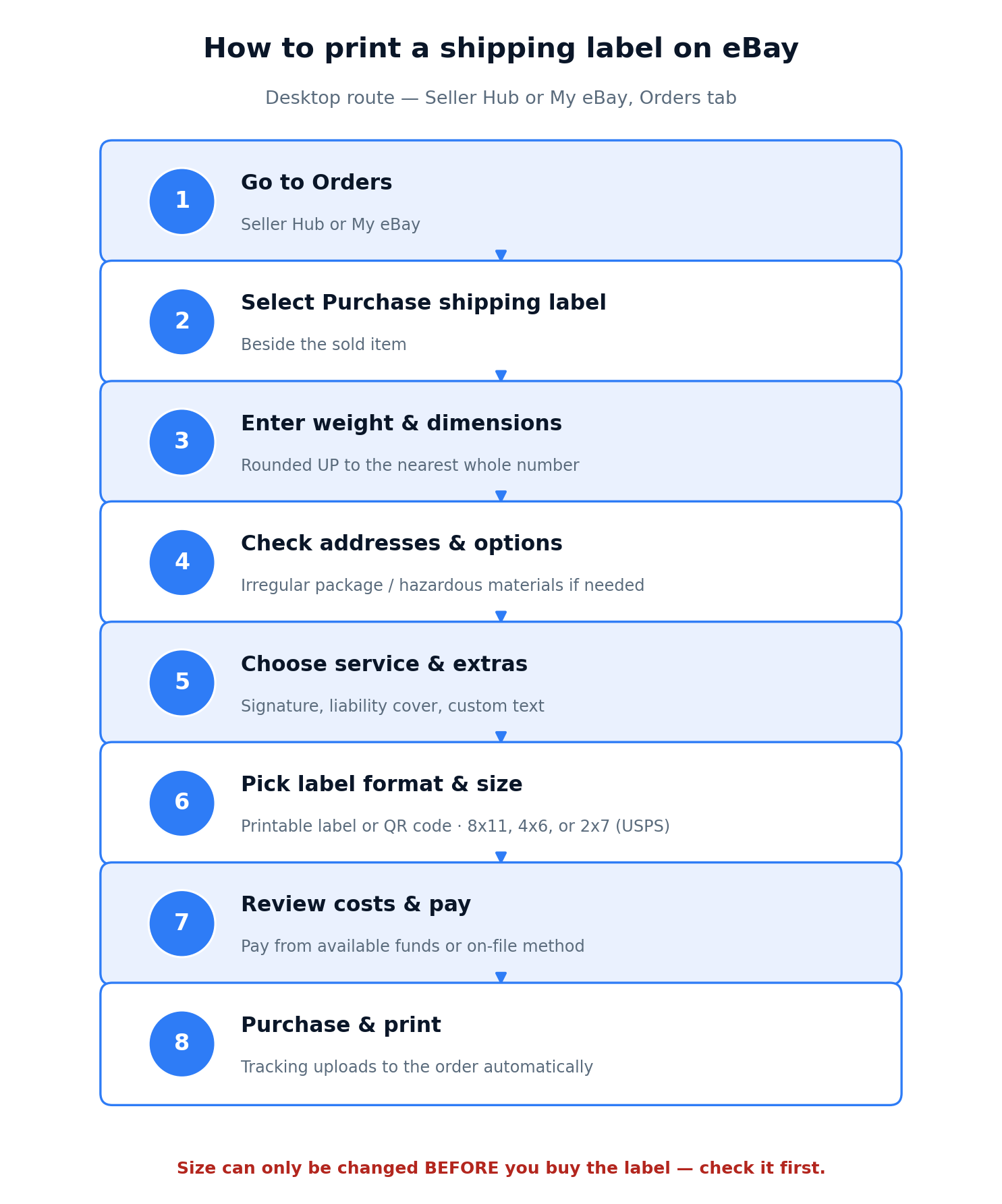
- Sign in and go to the Orders tab in Seller Hub.
- Beside the item you want to ship, select Purchase shipping label.
- Fill in the label details. Enter the package weight and dimensions, rounded up to the nearest whole number, and check that all addresses are correct.
- Set any special options in the Package details section: select Irregular package if you are using tubes or other irregular packaging, and Hazardous materials (with the type) if the item needs it.
- Choose your mailing date from the Ship on dropdown menu.
- Select your shipping service and any additional options: Require signature at delivery, Add additional liability coverage, Display postage value on label, Add custom text on label, or Add a message in the dispatch confirmation email. Fees may apply for these.
- Choose a label format — Printable label or QR code — and then a print format: 8 x 11 in, 4 x 6 in, or 2 x 7 in (USPS only).
- Select Pay with to confirm your payment method, review your shipping costs, then select Purchase shipping label and follow the steps shown to print your label.
Two details in that list catch sellers out. First, some options only appear on the advanced label page: if you are on the basic label page, select Switch to advanced shipping at the top right to reach them. Second, the label size can only be changed before you buy the label — once it is purchased, the size is locked in, and the only fix is to cancel the label and buy a new one. eBay says this plainly in a tip on its own page: if your label does not print as expected, double-check your label print format settings, because the size format can only be adjusted before purchasing.
Print a label from My eBay (desktop)
The My eBay route is the same flow in a different wrapper. Go to My eBay, then Orders, find the item, select Purchase shipping label, and work through the same eight steps: weight and dimensions rounded up, addresses checked, special options, Ship on date, service and extras, label format and print size, payment, review and purchase. The label itself is identical whichever route you use, and so are the deadlines in the reprint and void sections below.
| What you need | Where eBay shows it | What goes wrong if it is wrong |
|---|---|---|
| Package weight | Label details, rounded up to the nearest whole number | Carrier postage-due adjustment; the label may not cover the parcel |
| Package dimensions | Label details, rounded up to the nearest whole number | Wrong service price; dimensional-weight surcharge on the carrier’s side |
| Buyer address | Pre-filled from the order — check it before buying | Parcel goes to the wrong address; seller protection can be lost |
| Ship on date | Ship on dropdown | Label bought for the wrong day can still be used, but the tracking timeline shifts |
| Print format | 8 x 11 in, 4 x 6 in, or 2 x 7 in (USPS only) | Locked in at purchase — a wrong size means cancel and rebuy |
One more thing happens automatically when you buy through eBay: the tracking number is uploaded to the order for you. That is one of the reasons eBay lists for using its own labels — the others are the negotiated rates, which eBay says save money relative to what you would pay at the post office or to a carrier for most services, and the time saved by not standing in line. The label is paid for from your available funds, or from your on-file payment method: FedEx and UPS charges come from your funds first (or your payment method if your funds are insufficient), while for USPS you choose the payment method when you print the label.
How to print a shipping label on eBay app
The app covers almost everything the desktop site does for labels: you can purchase and print or reprint one or multiple labels, view and cancel labels, purchase additional labels, find a drop-off location, print packing slips, and view or save QR codes. The route is:
- Sign in to the eBay app.
- Tap Selling, then Orders.
- Tap the order.
- Tap the arrow to the right of Leave Feedback, then tap Manage shipping.
- Tap the 3 dots, and select the action you want to complete.
The app is the fastest way to handle a label when you are away from your desk — buy it on your phone, save the QR code, and print it at the drop-off point. But there are two jobs the app cannot do as well as the desktop site. The first is bulk printing: the bulk shipping tool and the USPS SCAN form are desktop-only. The second is the advanced label page: the extra options (irregular package, hazardous materials, custom dispatch message) are easiest to reach on desktop. If your parcel is a normal box with a normal weight, the app is fine. If it is a tube, a battery, or one of twenty orders, use the desktop site.
| Label job | Desktop (Seller Hub / My eBay) | eBay app |
|---|---|---|
| Buy and print one label | Yes | Yes |
| Reprint a label (free, within 7 days) | Yes | Yes |
| Cancel / void a label | Yes | Yes (view and cancel) |
| Buy an additional label for the same order | Yes | Yes |
| Bulk labels (2 or more orders) | Yes — bulk shipping tool | No — one order at a time |
| USPS SCAN form (5+ packages) | Yes — desktop only | No |
| Advanced label options | Yes — Switch to advanced shipping | Limited |
| QR code (no printer) | Yes | Yes — view or save QR codes |
| Find a drop-off location | Yes | Yes |
How to print a shipping label on eBay without a printer
No printer is not a reason to delay a shipment. eBay lets you buy the label as a QR code instead of a printable label, and the code is printed for you at the drop-off point. This is the answer to one of the most-searched questions around this topic — “how to print a label from eBay without a printer?” — and it is also the cheapest fix for a broken printer on shipping day.
- Go to Orders in Seller Hub or My eBay and select Print shipping label.
- Select a shipping service that says Yes under QR code — not every service offers it.
- Select QR code under Shipping label format.
- Select Purchase shipping label.
- Choose whether to download the QR code. You will also receive an email with the QR code for each label you purchase.
- Save the QR code on your device and bring the parcel to your nearest drop-off location offering Print in store.
- Have the retail associate scan the QR code to print the shipping label and attach it to your package. Some self-service kiosks also support label printing by QR code.
eBay’s page lists the supported locations separately for USPS, FedEx and UPS QR codes, so check your carrier’s list before you drive there — a location that prints USPS labels may not print UPS ones. Two warnings matter here. First, once the QR code has been scanned at a participating drop-off point to print your label, the label counts as used and cannot be cancelled. Second, the QR code route still costs the same as a printed label: the code is a different way to get the label onto the parcel, not a free label. If the Post Office queue is the problem, the QR code saves the trip to the counter; it does not save the postage.
What size should an eBay shipping label be?
eBay offers three print formats in the US: 8 x 11 in (a full sheet of standard paper), 4 x 6 in (the standard thermal label size), and 2 x 7 in (USPS only). The format you pick should match the printer and the paper you actually have — and you must pick it before you buy the label, because eBay locks the size in at purchase. This is the single most-searched detail in this whole topic (“how to print eBay shipping label 4×6”, “how to change eBay shipping label size after purchase”), and it is the one with no undo button: a wrong size means cancel the label and buy a new one.
| Print format | Best for | What to know |
|---|---|---|
| 8 x 11 in | Any home printer, no label printer needed | Print on standard paper, cut the label out, and attach it with clear tape — making sure not to cover the barcode. eBay’s own tip: if the label is too small for the size you chose, the barcode may not scan. |
| 4 x 6 in | Thermal label printers (the usual seller setup) | The format most sellers settle on. Set your printer settings to match the 4 x 6 size before printing, or the label can come out shrunken and unscannable. |
| 2 x 7 in | USPS only, narrow label rolls | Only available for USPS labels. Do not pick it for FedEx or UPS. |
If you do not have a label printer at all, the 8 x 11 in format on standard paper is the right choice: print, cut, tape, done. And if you are printing several labels at once, eBay notes you can print multiple labels on a single sheet of paper to save on labels. On the UK side, eBay states no inch or centimetre dimensions at all — you select the package size and service when you buy, and the bulk tool lets you fit labels onto a single sheet of A4 paper to lower printing costs. The UK rule that matters most is the same as the US one in spirit: check the size setting before you pay, because fixing it afterwards means voiding and rebuying.
How much does it cost to print a shipping label on eBay?
eBay does not publish a price list for labels, because the price depends on the carrier, the service, the weight, the dimensions and the distance. What eBay does say is that its negotiated rates save you money relative to what you would pay at the post office or to a carrier for most services — and you see the exact cost before you pay, on the Review costs step, so there is no surprise charge. The label is paid for from your available funds, or from your on-file payment method if your funds are short.
The cost that matters is not the label price on its own. It is the label price inside the whole sale. eBay charges its final value fee on the total amount of the sale — item price, handling, buyer-paid shipping and sales tax — so the postage the buyer pays you is also fee-bearing. That is why the worked examples below use a $10 label as an example assumption, clearly labelled as one: your real label will cost something else, but the maths shows how any label price flows through to your profit. Run your own numbers in Zyrro’s eBay Fee & Profit Calculator before you set a price.
Worked example 1: a $100 sale in the US
A $100 item, $40 product cost, $10 buyer-paid postage, $10 label. The buyer pays $110 in total. eBay’s final value fee is 13.6% of the total amount of the sale plus a $0.40 per-order fee.
| Line | Amount |
|---|---|
| Buyer pays (item $100 + postage $10) | $110.00 |
| Final value fee (13.6% of $110) | −$14.96 |
| Per-order fee | −$0.40 |
| Product cost | −$40.00 |
| Shipping label | −$10.00 |
| Profit | $44.64 |
Worked example 2: a $50 sale in the US
A $50 item, $15 product cost, $5 buyer-paid postage, $5 label. The buyer pays $55. The final value fee is 13.6% of $55, which is $7.48, plus the $0.40 per-order fee. Profit: $55.00 − $7.48 − $0.40 − $15.00 − $5.00 = $27.12. Notice the pattern: on a small sale, the label is a much bigger slice of the profit — $5 of label on a $27 profit is nearly a fifth of what you keep.
Worked example 3: a £100 sale in the UK (business seller)
A £100 item, £40 product cost, £5 buyer-paid postage, £5 label. The buyer pays £105. A UK business seller pays 12.9% final value fee plus a 0.35% regulatory fee plus a £0.40 per-order fee, and then 20% VAT on those fees.
| Line | Amount |
|---|---|
| Buyer pays (item £100 + postage £5) | £105.00 |
| Final value fee (12.9% of £105) | −£13.55 |
| Regulatory fee (0.35% of £105) | −£0.37 |
| Per-order fee | −£0.40 |
| VAT on fees (20% of £14.32) | −£2.86 |
| Product cost | −£40.00 |
| Postage label | −£5.00 |
| Profit | £42.82 |
Total fees on the UK business sale come to £17.18 (final value fee £13.55 + regulatory fee £0.37 + per-order fee £0.40 + VAT £2.86), so the profit is £105.00 − £17.18 − £40.00 − £5.00 = £42.82.
A UK private seller pays no final value fee on most categories, so the same £100 sale keeps £60.00 after the £40 product cost and the £5 label. The label itself is the same £5 either way — the fee structure around it is what changes. And a warning for UK sellers: if you buy an untracked service such as Royal Mail 2nd class through eBay, the reference number is added to the tracking overlay, but that does not mean the service is tracked. If a buyer opens an “item not received” case, an untracked reference number will not protect you the way a tracked label does.
How do I print my shipping label again on eBay?
Reprinting is the question sellers ask most after buying a label — the printer jammed, the ink ran out, or the label came out half-printed. The US rule is generous and worth knowing by heart: you can reprint your shipping label or QR code at no extra cost within 7 days of purchasing it. That is eBay’s own wording, and it means a reprint is never a second purchase as long as you are inside the 7 days.
To reprint, go to Shipping Labels in Seller Hub or Manage shipping labels in My eBay and select Download label or Download QR code. You can also reprint from the Orders page: find the order, open the More actions menu, and select Print packing slip and more to print the label directly. And if you bought the label as a single label, a PDF copy is attached to the email confirmation eBay sent you — check your inbox before you buy anything again.
| Situation | What to do | Cost |
|---|---|---|
| Printer jammed, label half-printed | Reprint from Shipping Labels / Manage shipping labels > Download label | Free, within 7 days of purchase (US) |
| Label lost after printing | Same reprint route, or the PDF in your email confirmation | Free, within 7 days of purchase (US) |
| More than 7 days since purchase (US) | No free reprint is stated after 7 days — cancel the old label if still unused and buy a new one | New label price (old label refunded if the cancellation is approved) |
| Label already used / parcel shipped | Nothing to reprint — the label has done its job; use the tracking number instead | — |
| UK seller reprinting | Same route: Orders > Print postage label (the page heading covers print or reprint) | No time limit or free-reprint rule is stated on the UK page — do not assume the US 7-day rule applies |
Do not confuse a reprint with a second label. A reprint is the same label, same tracking number, printed again — free within 7 days in the US. A second label is a new label with a new tracking number, and it is charged separately. If your parcel needs two boxes, you need a second label, not a reprint — that is covered in the second-label section below. And if you are a UK seller, be careful with the 7-day figure: it comes from eBay’s US page, and the UK page states no reprint time limit at all. Reprint promptly either way, and keep the email PDF as your backup.
How to void a shipping label on eBay
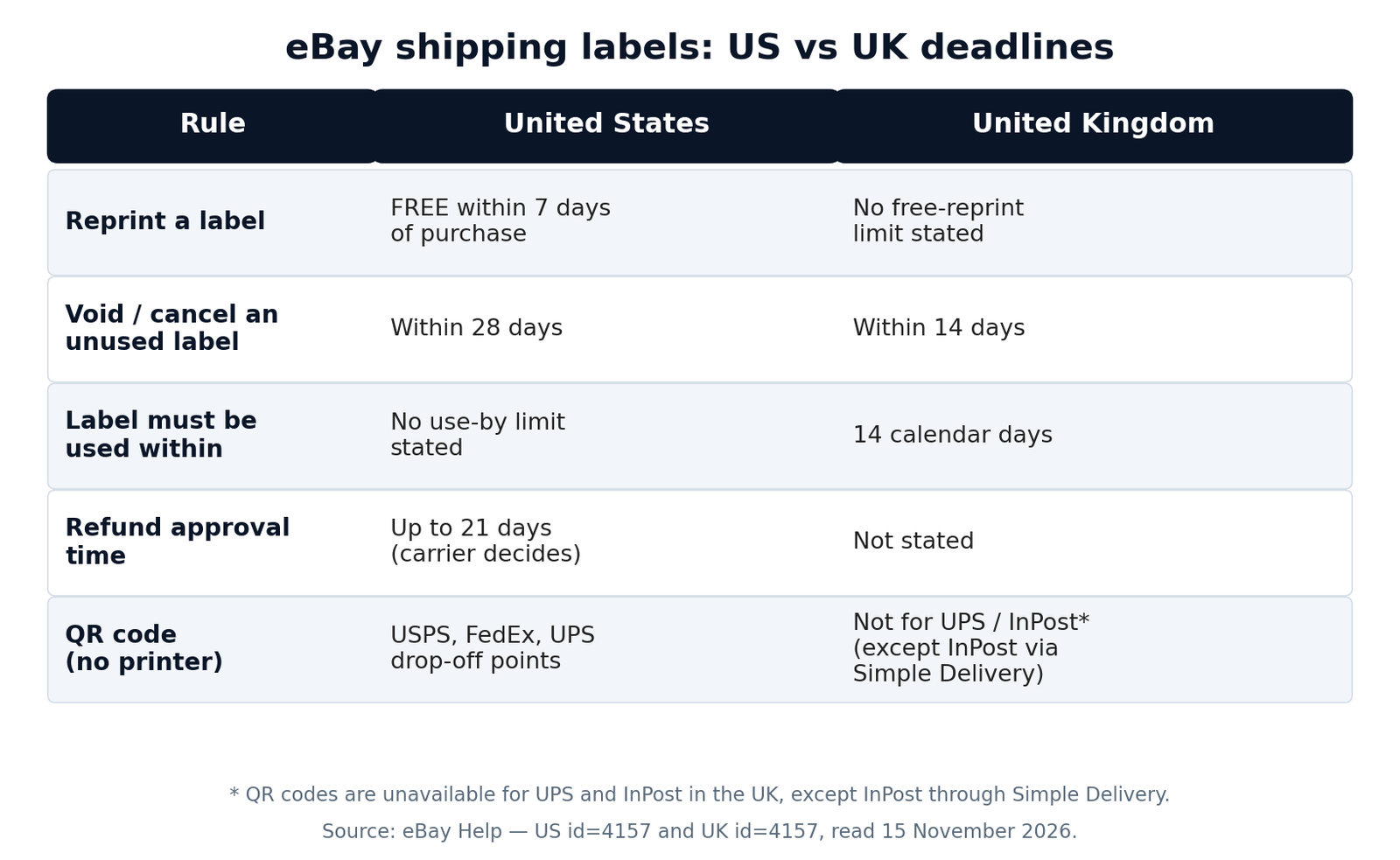
Voiding — eBay’s US pages call it “canceling” — is how you get your money back for a label you no longer need. The buyer cancelled, the address was wrong, or you printed the wrong size. The deadlines are different in the US and the UK, and mixing them up is how sellers lose the label money, so here they are side by side.
| Rule | United States | United Kingdom |
|---|---|---|
| Time limit to cancel / void an unused label | 28 days from purchase (USPS, FedEx, UPS) | 14 days from purchase (labels on the eBay labels platform) |
| Label must be used within | Not stated as a use-by limit on the US page | 14 calendar days — void within 14 days to get a refund |
| Refund approval time | Up to 21 days for the carrier to approve or reject | Not stated on the UK page |
| Where the refund goes | Original funding source, if approved | Not stated on the UK page |
| eBay standard envelope labels | Cannot be cancelled once printed | — |
| Simple Delivery labels | — | No void needed — refund goes to whoever paid for postage |
| QR code already scanned at drop-off | Label counts as used, cannot be cancelled | — |
Void a label in the US
- Go to Shipping Labels in Seller Hub or Manage shipping labels in My eBay.
- Find the item, and from the Actions column select Cancel Label.
- Choose your reason for cancelling the label.
- Select Send request.
You have 28 days to cancel an unused USPS, FedEx or UPS label, and it can take up to 21 days for the carrier to approve or reject the refund. If it is approved, the funds are credited to your original funding source. Two exceptions: eBay standard envelope labels cannot be cancelled once they have been printed, and if your QR code has already been scanned at a participating drop-off point, the label counts as used and cannot be cancelled. If you still intend to ship the order after cancelling its label, eBay’s tip is to add the new tracking number to the order as an additional tracking number — otherwise the order still shows the cancelled one.
Void a label in the UK
- Select Selling in My eBay, or select Orders on the Seller Hub Overview page.
- Select Postage Labels on the left-hand side.
- Select Actions next to the label you want to void, and select Void Label.
The UK window is half the US one: you can cancel unused labels purchased on the eBay labels platform within 14 days, and labels need to be used within 14 calendar days — void within 14 days to get a refund. eBay’s UK page states no refund timing, so do not expect the US 21-day figure to apply. One UK exception works in your favour: if your item was listed with Simple Delivery, you do not need to void an unused label at all — if you did not use the Simple Delivery label provided, you or your buyer will be refunded the cost of the label, depending on who paid for postage.
How to print a shipping label on eBay UK
UK sellers buy labels the same way — from Orders — but the carriers, the payment methods and the deadlines are different enough that the US steps do not transfer directly. This section covers the UK flow on its own, from eBay’s UK help page “Buying and printing postage labels, packing slips and order receipts”, which we read on 15 November 2026.
To buy and print a label in the UK: go to Orders and select Print postage label next to the item, enter the weight of your item including any packaging, select the package size and service, and when you have paid you will be prompted to print your label from your laptop or desktop PC. Attach it to your parcel using clear sticky tape, ensuring the address and bar codes are clear. Labels can be printed on an ordinary printer, or through the print in store feature.
| UK carrier | How you pay for the label | Notes |
|---|---|---|
| Royal Mail | Available funds on your eBay account | Direct Royal Mail postage labels; contact Royal Mail if there is an issue with a label |
| EVRi, Yodel, UPS, InPost, DPD (via eBay Delivery powered by Packlink) | Available funds; shortfall comes from your preferred on-file payment method | International delivery through Packlink is supported by UPS |
| Parcelforce | PayPal | All Parcelforce label purchases are paid with PayPal |
| Simple Delivery (Royal Mail or DHL prepaid labels) | Buyer pays at checkout; if you offered free postage, the cost is deducted from your account | Prepaid label and QR code provided when the item sells; collection can be booked on eBay and the carrier brings the label |
Three UK rules deserve emphasis. First, the deadlines are shorter: unused labels must be voided within 14 days, and labels need to be used within 14 calendar days — half the US 28-day window. Second, there is no free-reprint time limit stated on the UK page, so do not assume the US 7-day free reprint applies to you. Third, Simple Delivery is the only delivery method available for private sellers who list eligible items on eBay.co.uk, and opting out is only available for specific items or categories — so many UK private sellers never buy a label at all, because eBay provides one. And if you buy an untracked service such as Royal Mail 2nd class, the reference number is added to the tracking overlay, but that does not mean the service is tracked.
For bulk UK labels, use the Bulk shipping tool or the “Manage orders awaiting dispatch” tab in Seller Hub, and the bulk tool lets you fit labels onto a single sheet of A4 paper to lower printing costs. For an order in multiple packages, select Buy labels in bulk at the top of the page and choose the order to add additional parcels. The eBay app covers the same jobs as in the US — purchase, print or cancel labels, find drop-off locations, print packing slips, and view or save QR codes.
How to print a second shipping label on eBay
“Second label” means three different things on eBay, and sellers use the same words for all three — which is why the forums are full of confused answers. Here they are, separated.
| What you mean | What it is | Cost |
|---|---|---|
| Reprint | The same label, same tracking number, printed again | Free within 7 days of purchase (US) |
| Additional label, same order | A new label for a second parcel in the same order, with its own tracking number | Charged separately, by that parcel’s weight and dimensions |
| Combined label | One label covering several orders from the same buyer | One label price, for the combined parcel |
Shipping one order in multiple packages
When an order needs more than one box, you print a different label for each package. Once you have printed the label for your first package, select Print another label for this order from the label confirmation page, then enter the weight and dimensions for the next package. Each additional label has its own tracking number and is charged separately, based on the weight and dimensions you entered. Orders are limited to 5 tracking numbers per transaction, so an order split across more than five parcels cannot be fully covered this way.
Combining orders from the same buyer
If one buyer has purchased several items from you, combine them into a single shipment instead of paying for several labels. In Seller Hub or My eBay, select the “Buyer has X orders to ship” tag, select the orders to include, and for an eBay label select Shipping, then Get Label to reach the bulk label purchase page, where you select Combine orders per buyer. If you already have your own shipping label, select Shipping, then Add tracking instead. You can also combine labels for different buyers at the same time: filter Orders to Awaiting shipment, sort by buyer, set the page to 200 orders, tick the checkbox next to Actions to select everything on the page, choose Shipping then Get shipping label, and select Combine orders per buyer. You can combine up to 200 orders at a time; beyond that, buy labels in batches.
Printing labels in bulk
For two or more orders, the bulk route is: go to the Orders tab in Seller Hub, check the boxes beside the orders you want to ship, open the Shipping dropdown and select Purchase Shipping Labels. That opens the bulk shipping tool, where you can edit details of individual orders — dispatch options, delivery addresses, shipping providers, signature confirmation, ShipCover insurance — then select Review Purchase to see the total cost, Confirm and pay, and Print Labels. In the UK, the same job is done through the Bulk shipping tool or the “Manage orders awaiting dispatch” tab in Seller Hub, and the bulk tool lets you fit labels onto a single sheet of A4 paper to lower printing costs.
The USPS SCAN form (5 or more packages)
USPS typically requires a Shipment Confirmation Acceptance Notice (SCAN) form to scan 5 or more packages at the pickup or drop-off location. Instead of scanning each parcel individually, the counter scans the single SCAN form for all of them. You can create the form on the desktop site only: go to the bulk shipping tool page, select SCAN forms at the top right, and create and print the form. You can create one SCAN form for each bulk shipping label purchase — and remember the catch: once the SCAN form is scanned by USPS, any labels assigned to it will not receive a credit if cancelled. So do not create the SCAN form until you are sure every label on it is final.
Why isn’t eBay letting me print the shipping label?
This is one of the most-searched questions in this whole topic, and it has several different causes — which is why a single fix never works for everyone. Work through them in order.
| Symptom | Likely cause | Fix |
|---|---|---|
| No “Purchase shipping label” button on the order | The order uses eBay International Shipping or a seller-managed delivery method — eBay labels are not available for those | Use the delivery method’s own label flow instead |
| Label prints at the wrong size / barcode will not scan | Printer settings do not match the label size you selected | Match the printer settings to the label size before printing; remember the size can only be changed before purchase |
| Label option missing on the app | Bulk and advanced-label features are desktop-only | Use Seller Hub on desktop for bulk labels, the SCAN form, and advanced options |
| QR code option not offered | Not every service offers QR codes — in the UK, QR codes are unavailable for UPS and InPost (except InPost through Simple Delivery) | Pick a service that shows “Yes” under QR code, or print the label normally |
| Buyer address looks wrong | Buyer entered the wrong address at checkout | Change the shipping address in Orders before you print the label — after printing it is too late, and shipping to a different address than the buyer provided loses eBay Money Back Guarantee cover for items not received |
| Label bought but nothing prints | Browser or printer dialogue blocked, or the wrong default size | Re-download from Shipping Labels / Manage shipping labels (free within 7 days in the US) or use the PDF in your email confirmation |
| Order already has a label, and you need another | You need an additional label, not a reprint | Use “Print another label for this order” from the confirmation page |
One more cause is worth naming because it surprises new sellers: if the buyer has already cancelled, or the order is no longer in “awaiting shipment”, the label button disappears with the order. Check the order status first — a missing button is often a cancelled order, not a broken page. And if you changed the label size after buying, eBay will not let you reprint in the new size: the size is fixed at purchase, so the only route is void the old label (within 28 days in the US, 14 days in the UK) and buy a fresh one.
How to print a packing slip on eBay
A packing slip is not the shipping label — it is the list of what is inside the parcel, and buyers like finding one when they open the box. You can print order receipts, packing slips and address labels from My eBay and Seller Hub. For one order in Seller Hub: go to Orders, find the order, select the 3 dots next to it, and select Print packing slip and more. For several orders at once: check the boxes next to each order, select the Shipping button at the top, then select Print packing slip and more. You can also print a packing slip from the Manage shipping labels page. The same screen prints the order receipt (the full cost the buyer paid, including shipping) and an address label with your return address — handy for branded parcels.
What does a label mistake really cost?
Label mistakes feel small until you put them next to the profit on the sale. The table below uses the US $100 sale from earlier — $44.64 profit when everything goes right — and shows what each common mistake does to it. All figures use the same assumptions ($40 product cost, $10 buyer postage, $10 label), so the differences are the mistakes themselves, not different sales.
| Scenario (US $100 sale) | What happens | Profit |
|---|---|---|
| Everything right, one $10 label | Revenue $110, FVF $14.96, per-order $0.40, cost $40, label $10 | $44.64 |
| Second parcel needed — second $10 label | Extra label charged separately, own tracking number | $34.64 |
| Wrong size — void and reprint at $12 | Old label refunded if cancellation approved; new label $2 more | $42.64 |
| Free return — buyer sends it back, you pay both labels | Outbound $10 + return $10; item comes back and can be resold | −$20.00 |
| Wrong size, void too late (after 28 days, US), replacement label bought | No refund for the first label; a replacement $10 label is bought to ship the order | $34.64 |

The UK version of the same lesson is sharper, because the void window is only 14 days instead of 28: a UK business seller on a £100 sale keeps £42.82 when the label is right, and loses the full £5 label if the void is a day late. On a £100 sale that is a tenth of the profit gone on a single missed deadline. The discipline that prevents all of it is boring and cheap: weigh the packed parcel, round up, check the address, check the size setting, and only then click Purchase. The label is the cheapest part of the sale to get right and the most annoying part to fix.
Frequently asked questions about printing a shipping label on eBay
Can I print my own eBay shipping label?
Yes. eBay Labels lets you buy and print labels yourself — USPS, FedEx or UPS in the US, Royal Mail and Packlink carriers in the UK. In Seller Hub or My eBay, open Orders, select Purchase shipping label, enter weight and dimensions, choose a service, and print on a home or label printer.
Why isn’t eBay letting me print the shipping label?
The most common reason is that the order uses eBay International Shipping or a seller-managed delivery method, for which eBay labels are not available. Other causes: the order was cancelled, bulk features are desktop-only, or your service offers no QR code. Check the order status first, then open Seller Hub on desktop and confirm the delivery method.
How to print eBay shipping label on label printer?
Choose the 4×6 print format when you buy the label — the standard thermal label size. Set your label printer to match 4×6 before printing, or the label can come out shrunken and the barcode may not scan. Pick the size before you pay: eBay locks it in at purchase.
How do I print my shipping label again on eBay?
In the US, reprints are free within 7 days: open Shipping Labels in Seller Hub or Manage shipping labels in My eBay and select Download label. You can also reprint from Orders via More actions, then Print packing slip and more, or use the PDF in your email confirmation. The UK page states no free-reprint time limit.
How to print eBay shipping label 4×6?
Choose 4×6 as the print format when you buy the label — in the US the options are 8×11, 4×6, or 2×7 for USPS only. Match your printer settings to 4×6 before printing. You cannot change the size after purchase: void the label within 28 days in the US, or 14 days in the UK, and buy a new one.
How to print a label from eBay without a printer?
Buy the label as a QR code instead of a printable label: pick a service that shows Yes under QR code, select QR code as the format, and purchase it. Save the code from your device or email, then take the parcel to a drop-off point or Post Office, where it is scanned and the label printed for you.
Printing a label on eBay takes about two minutes when everything is ready — and most of those two minutes should be spent checking, not clicking. Weigh the packed parcel, round the weight up, confirm the address, and pick the size before you pay. Know the two deadlines for your market — 7 days to reprint free and 28 days to cancel in the US, 14 days to void in the UK — and keep the email PDF as your backup. The label is a small cost inside every sale, but it is the cost that turns a sold item into a delivered one, and a delivered one into a paid one. For the rest of the maths, Zyrro’s eBay Fee & Profit Calculator works out the fees and the profit on any sale before you list it.