How to Schedule an eBay Listing to Start at the Right Time

Short answer: To schedule an eBay listing, create the listing as normal, then in the Pricing section choose “Schedule your listing’s start time” (quick listing tool) or switch “Schedule your listing” on (advanced listing tool), pick a date and time up to 3 weeks ahead, and confirm. eBay lists it automatically at that time, and scheduling is free in most categories.
Listing at the wrong hour is one of the quietest ways to lose money on eBay. A 7-day auction that starts on a Monday morning ends the following Monday morning, when most buyers are at work — while the same listing started on a Sunday evening ends the next Sunday evening, when bidding is at its busiest. Scheduling is how you control that, instead of letting the moment you happen to finish writing the listing decide when it ends.
The good news is that eBay’s scheduler is built into the normal listing flow, costs nothing in most categories, and works for auctions and fixed-price listings alike. This guide from Zyrro walks through the exact clicks on desktop and on the app, what scheduling costs in the US and the UK, how far ahead you can set a start time, which start times actually sell, and what to do when a scheduled listing does not go live.
How to schedule an eBay listing on desktop (quick listing tool)
The quick listing tool is the guided form most sellers see when they click Sell. Scheduling is one setting inside it, not a separate feature you have to find first.
- Start the listing as normal. Click Sell, enter what you are selling, and fill in the title, photos, item specifics, description, price and postage exactly as you would for a listing that goes live straight away.
- Open the Pricing section. Scroll to Pricing. This is where the format (auction or fixed price), the starting price or Buy It Now price, and the duration live.
- Find the start-time setting. Choose “Schedule your listing’s start time”. If you do not see it, click “More options” in the Pricing section first — the scheduling control hides behind it in some versions of the form.
- Pick a date and time. Choose the day and the time you want the listing to go live. You can schedule up to 3 weeks in advance, and you cannot pick a time in the past.
- Check the fee recap, then confirm. The review screen shows every fee that will apply. In most categories the scheduler itself adds nothing, but check the recap — it is the one place eBay shows the exact charge for your listing before you commit.
- Click “List your item”. The button keeps its normal name. Your listing does not go live now; eBay holds it and publishes it automatically at the time you chose.
After confirming, find the listing under Seller Hub > Listings > Scheduled. If it is there, it is queued. If it is not there, the listing was not scheduled — check the troubleshooting section at the end of this guide before you list it again.
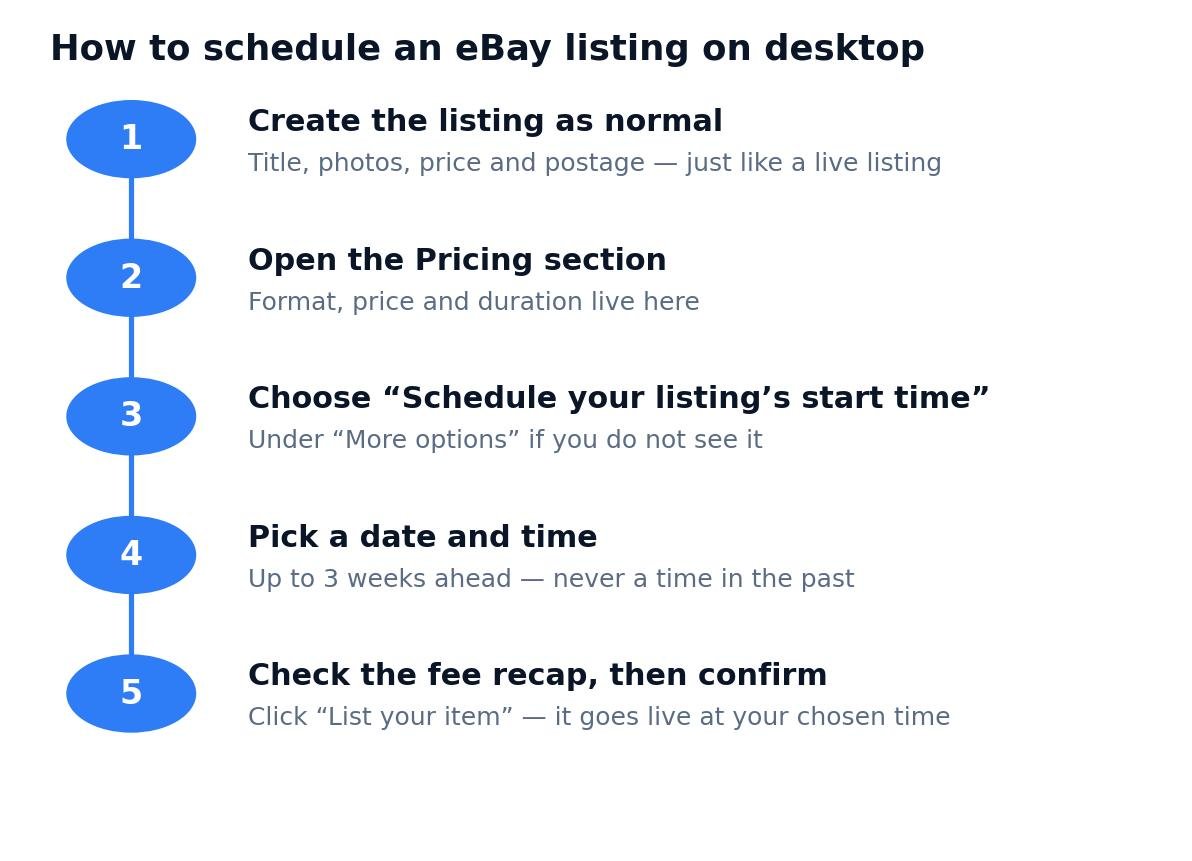
The five desktop steps in order: create the listing, open Pricing, choose the start time, pick a date and time, and confirm.
How to schedule an eBay listing in the advanced listing tool
The advanced listing tool sits inside Seller Hub and has more options than the quick form. The scheduling steps are almost the same, with one difference in where the switch lives.
- Open Seller Hub and start a listing. Go to Listings > Create listing (or open an existing draft) in the advanced listing tool.
- Go to the Pricing section. Set the format, price and duration as usual.
- Switch “Schedule your listing” on. In the Pricing section, toggle “Schedule your listing” to on. If the toggle is not visible, click “See all options” first.
- Set the start date and time, then list. Pick your date and time (up to 3 weeks ahead), review the fees, and confirm. The listing appears under Seller Hub > Listings > Scheduled.
The advanced tool is the better choice when you are scheduling several listings, because you can move through them faster and you get the full set of duration and upgrade options on one screen. For a single listing, either tool works — the scheduled start behaves the same way once it is set.
How to schedule an eBay listing on the app
You can schedule a listing from the eBay app, which matters when you photograph and list stock away from your desk. The flow mirrors the desktop quick listing tool.
- Open the eBay app and tap Sell. Create the listing: photos, title, category, description and price.
- Find the start-time setting in the listing form. In the pricing area, look for the start-time or schedule option. On some versions of the app it sits under an additional-options or “more” control, so expand those if you do not see it immediately.
- Choose the date and time, then confirm. Pick a start time up to 3 weeks ahead and finish the listing. The app saves it as a scheduled listing, and you can check it later under your scheduled listings in Seller Hub on desktop.
One warning: the app’s listing form changes more often than the desktop one, and the schedule option is the setting most likely to move after an update. If you cannot find it on your phone, finish the listing as a draft on the app and set the start time from Seller Hub on a desktop browser — drafts carry over, and the desktop form always shows the option in the Pricing section.
Does it cost money to schedule listings on eBay?
No — not in most cases. Scheduling is an optional listing upgrade, and eBay lists it as free in most categories. That is the short answer, and it is also why so many older guides are wrong on this point: years ago a scheduled start carried a fee, and some guides written then still say so. The current fee tables say otherwise.
| Market | Scheduling fee | What to watch |
|---|---|---|
| US (eBay.com) | Free in most categories | A small number of categories charge a small fee — check the fee recap on the listing form before you confirm. |
| UK (eBay.co.uk) | Free for business sellers | eBay’s private-seller fee page lists no Scheduler charge at all — check the fee recap |
| Australia (eBay.com.au) | Free in most categories; $0.44 in a small number of categories | Shown on eBay’s own fee page (id 4822). |
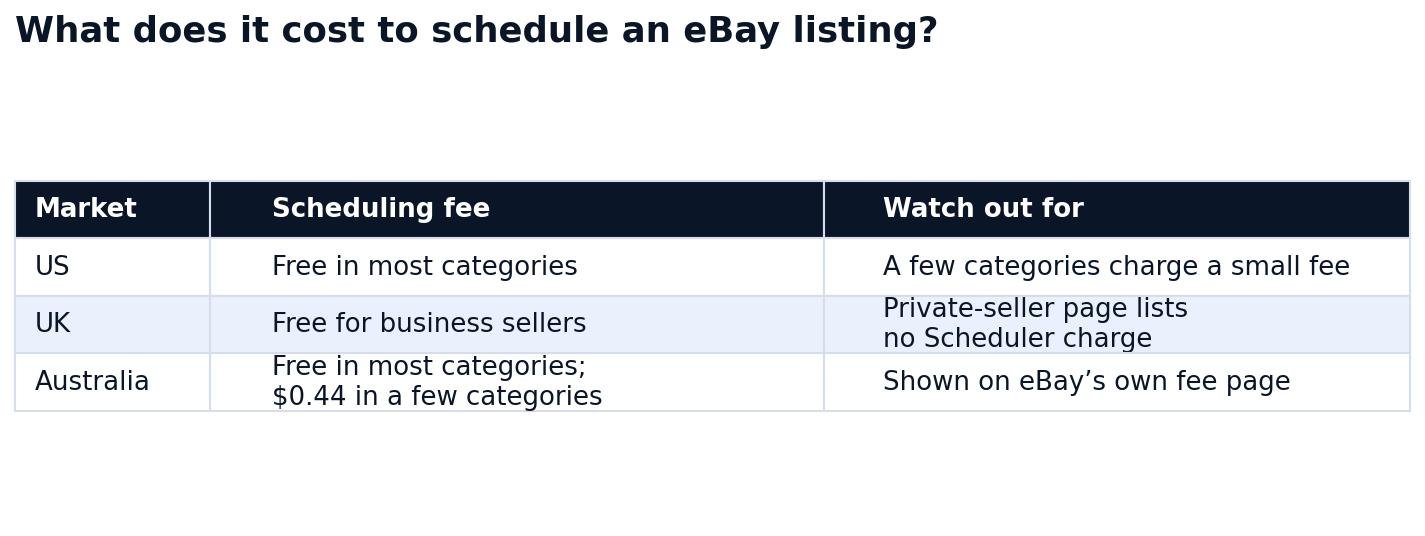
Scheduling is free in most categories, and free for UK business sellers — the private-seller fee page lists no Scheduler charge.
What scheduling does not change is the rest of the fee bill. The insertion fee, the final value fee and the per-order fee all apply exactly as they would if you listed immediately — scheduling only moves the start time. Two related costs are easy to confuse with the scheduling fee, so keep them separate:
- Insertion fee. US sellers get their first 250 listings a month free, then pay $0.35 per listing. UK private sellers get 300 free listings a month. The insertion fee is charged when the listing goes live, not when you schedule it — so if you use up your free allowance before the scheduled start, you will be charged. (Source: eBay’s selling-fees help pages.)
- Short-duration fee. A 1-day or 3-day auction costs an extra $1.00 in the US (35p in the UK for private sellers). That fee is for the short duration, not for scheduling — but it is the fee sellers most often pay by accident when they schedule a short auction to end at a good time.
Worked example: scheduling costs nothing, a short auction costs $1
Take a US sale at $100 with a $40 item cost, $10 buyer-paid postage and a $10 label. The final value fee is 13.6% of the $110 total ($14.96) plus the $0.40 per-order fee, so total fees are $15.36 and profit is $44.64 — whether you list now or schedule the same listing for Sunday evening. Scheduling adds $0.00.
Now schedule the same item as a 1-day auction instead, to catch a single evening’s bidding. The $1.00 short-duration fee applies, profit falls to $43.64, and you have one evening instead of seven days to find your buyer. The lesson is not that scheduling is expensive — it is that the duration you schedule matters more than the scheduling itself. Run any listing through the eBay Fee & Profit Calculator before you pick a duration, so the fee decision is made with real numbers.
| US $100 sale | Scheduled 7-day auction | Scheduled 1-day auction |
|---|---|---|
| Revenue (item + postage) | $110.00 | $110.00 |
| Final value fee (13.6%) | $14.96 | $14.96 |
| Per-order fee | $0.40 | $0.40 |
| Scheduling fee | $0.00 | $0.00 |
| Short-duration fee | $0.00 | $1.00 |
| Item cost + label | $50.00 | $50.00 |
| Profit | $44.64 | $43.64 |
The UK version of the same sale: a £100 sale with a £40 cost, £5 postage and a £5 label. A UK business seller pays 12.9% final value fee (£13.55) + 0.35% regulatory fee (£0.37) + £0.40 per-order fee, plus 20% VAT on those fees (£2.86) — total fees £17.18, profit £42.82. A UK private seller pays no final value fee at all, so profit is £60.00. Scheduling is free for UK business sellers, and eBay’s private-seller fee page lists no Scheduler charge at all.
How far in advance can you schedule an eBay listing?
Up to 3 weeks in advance. That limit comes from eBay’s own seller guidance: the schedule field lets you “schedule listings to start on a day and time you choose, up to 3 weeks in advance”. You cannot schedule a listing for a date in the past, and you cannot schedule a listing that is already live.
| If today is | Latest start you can schedule |
|---|---|
| Tuesday 10 November 2026 | Tuesday 1 December 2026 |
| Monday 1 December 2026 | Monday 22 December 2026 |
| Any date | That date + 21 days |
Three weeks is enough to plan a proper launch — for example, creating all of next week’s listings on a quiet Sunday and spacing them across the week — but it is not a long-term calendar. If you need a listing to go live more than 3 weeks out, save it as a draft and schedule it when the window opens. Drafts in the quick listing tool last up to 75 days after your last edit, so a draft made today is still there when the scheduling window opens.
One more limit to know: a scheduled listing counts against your selling limits and your free-listing allowance when it goes live, not when you create it. If you schedule 300 listings for next Monday and you only have 250 free listings a month, the ones past the allowance will each cost $0.35 when they launch. Count the batch before you schedule it.
What time should your eBay listing start and end?
For an auction, the start time matters mainly because it fixes the end time: a 7-day auction ends exactly 7 days after it starts, at the same time of day. So the real question is when you want the auction to end, and you work backwards from there.
eBay runs on Pacific Time
eBay shows listing times in Pacific Time, and its own guidance says so plainly: “eBay uses Pacific Time for all listings.” That is the single most common scheduling mistake — a UK seller who sets 6pm thinking of London time has actually set 6pm Pacific, which is 2am in London and 10pm in New York. Always convert before you confirm.
| If your auction ends at | Los Angeles | Chicago | New York | London |
|---|---|---|---|---|
| 6pm Pacific | 6pm | 8pm | 9pm | 2am |
| 3pm Pacific | 3pm | 5pm | 6pm | 11pm |
| 12pm Pacific | 12pm | 2pm | 3pm | 8pm |
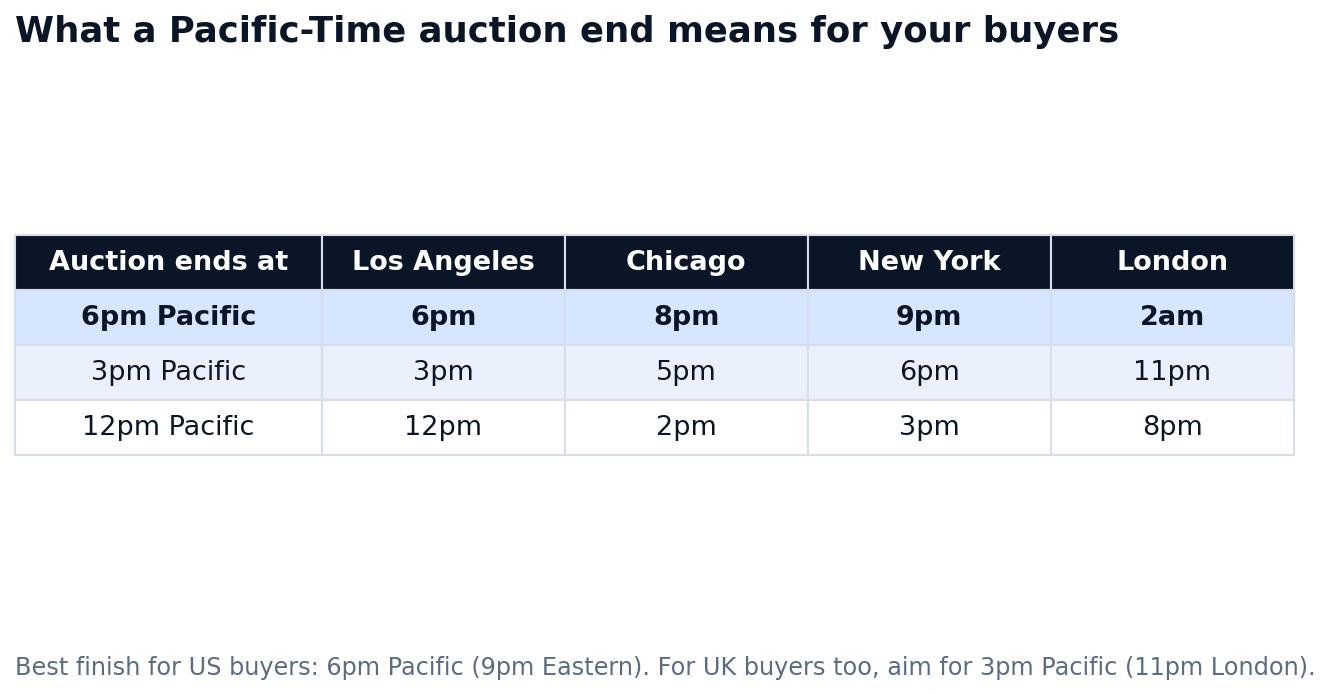
A 6pm Pacific finish is 9pm in New York but 2am in London — convert before you confirm.
For US buyers, an end time of 6pm Pacific (9pm Eastern) catches the evening on both coasts: the West Coast is home from work and the East Coast is still up. A 3pm Pacific end (6pm Eastern) is the better pick if you also want UK buyers in the room, because it is 11pm in London — late, but not the middle of the night.
Which day should an auction end?
Most bidding happens in the final hours, so the end day matters as much as the end hour. A 7-day auction started on a Sunday evening ends the following Sunday evening, which puts the finish in the weekend on both ends. A 7-day auction started on a Tuesday ends the following Tuesday, when fewer people are browsing. The widely repeated seller advice is to include a full weekend and to aim for the 5–9pm Pacific evening window; treat that as a rule of thumb, not a guarantee, because the right evening depends on your category — collectors browse at different hours than parents buying children’s clothes.
For fixed-price listings, the start time matters far less: the listing stays up for 30 days (Good ‘Til Cancelled) and buyers arrive through search whenever they search. Schedule fixed-price listings when it suits your workflow, and spend the timing effort on auctions, where the end time is the whole game.
Can you schedule an auction on eBay?
Yes. Auctions are the listing format scheduling was built for, and every auction duration can be scheduled: 1, 3, 5, 7 or 10 days. The duration you pick fixes the end date — a 7-day auction scheduled to start on Sunday 15 November at 6pm Pacific ends on Sunday 22 November at 6pm Pacific.
| Auction duration | Extra fee (US) | Best for |
|---|---|---|
| 1 day | $1.00 | Urgent clear-out; only if feedback score is 10 or more |
| 3 days | $1.00 | Fast-moving items with proven demand |
| 5 days | $0 | Mid-range items; catches a weekend if timed right |
| 7 days | $0 | Most auctions — a full week including a weekend |
| 10 days | $0 | High-value or niche items that need time to be found |
Two details catch sellers out. First, the 1-day duration only appears once your feedback score is at least 10, so new sellers cannot schedule a 1-day auction at all. Second, fixed-price listings use Good ‘Til Cancelled instead of a day count: they renew every 30 days, and each renewal uses a free listing or charges the insertion fee again. Scheduling a fixed-price listing only sets its first start time; it does not change the 30-day renewal cycle.
If you are torn between a 7-day and a 10-day auction for the same item, schedule the 7-day one. Ten days costs nothing extra, but three more days of waiting rarely adds bidders — it mostly adds watchers who forget. The exception is a genuinely rare item, where collectors need time to find it; for everything else, seven days with a Sunday-evening finish beats ten days that end on a Wednesday afternoon.
How to change or cancel a scheduled listing on eBay
A scheduled listing is not locked in. Until the moment it goes live, you can change it or cancel it.
- Go to Seller Hub > Listings > Scheduled. This is where every queued listing lives.
- To change the start time: open the scheduled listing and choose Reschedule, then pick the new date and time. The new start must still be within 3 weeks of today, and it cannot be in the past.
- To edit the listing itself: open it and edit the title, price, photos or postage as normal. Editing a scheduled listing does not change its start time unless you change the start time as well.
- To cancel the schedule: end or delete the scheduled listing from the Scheduled section. Cancelling the schedule does not delete the listing content — it returns to your drafts, so you can schedule it again later.
If your listing has already gone live, scheduling is over: you can revise the listing or end it, but you cannot move its start time. That is why the check matters — open the Scheduled section after you set a start time and confirm the date is the one you intended, especially the time zone.
Why your scheduled listing didn’t go live
Scheduled listings almost always launch on time. When one does not, it is usually one of these causes.
| Symptom | Likely cause | Fix |
|---|---|---|
| Listing never appears in search | You set a past date, or the time zone was wrong (Pacific vs your local time) | Check Seller Hub > Listings > Scheduled for the real start time; reschedule with the time converted to Pacific |
| “Schedule” option is missing | The quick listing tool is hiding it under “More options”, or the app version moved it | On desktop, expand “More options” in Pricing; on the app, save as a draft and schedule from Seller Hub on desktop |
| Listing went live but with a fee you did not expect | You used up your free-listing allowance before the start date, or picked a 1- or 3-day auction ($1.00) | Check the fee recap before confirming; count scheduled listings against your monthly allowance |
| Scheduled listing vanished | An edit or a relist reset it, or eBay had a brief technical delay | Check drafts and the Scheduled section; if eBay was at fault, the listing usually appears within a few hours — contact eBay support if it is still missing after a day |
| Auction ended at a bad time | Duration counted from the start time you set, not the time you created the listing | Work backwards from the end time you want: end time minus duration equals the start time to schedule |
One more quiet trap: scheduling does not relist an item for you. If your 7-day auction ends unsold, it does not automatically go live again next Sunday — you have to relist it. Our guide to how to relist an item on eBay covers the relist fees, including the fact that any listing upgrades you chose are charged again on a manual relist.
Is scheduling listings on eBay worth it?
For most sellers, yes — with one condition: schedule with a purpose, not out of habit. Scheduling earns its keep in four situations, and is pointless in the rest.
- Auctions. This is the real use case. The end time decides who is awake and bidding, and scheduling is the only way to land an auction’s finish on a Sunday evening without sitting at your computer that evening.
- Batch listing. Creating ten listings on a quiet Sunday and spacing them across the week keeps your shop looking active and spreads the end times, instead of dumping everything live at once on Monday morning.
- Seasonal timing. A Halloween costume listed in early October, or a gift item scheduled to go live at the start of December, arrives when buyers are searching — without you having to remember the date.
- Time-zone selling. If your buyers are mostly in the US and you are in the UK, scheduling is how you list on American evenings while you sleep.
It is not worth it for fixed-price listings with no timing reason — there the start time changes nothing, and a listing that sits scheduled for two weeks is two weeks of sales you did not make. List fixed-price items now, schedule auctions for the evening you want them to end, and keep the batch small enough that you can still check the Scheduled section the day each one goes live.
Frequently asked questions about scheduling an eBay listing
Does it cost money to schedule listings on eBay?
No, not in most cases. eBay lists scheduled listings as free in most categories in the US. In the UK it is free for business sellers, and the private-seller fee page lists no Scheduler charge at all. The insertion and final value fees still apply as normal — scheduling only changes the start time, not the cost.
How do I schedule an eBay listing on my phone?
Open the eBay app, tap Sell, and build the listing. In the pricing area, look for the start-time or schedule option — it may hide under an additional-options control. Pick a start time up to 3 weeks ahead and confirm. If you cannot find the option, save the listing as a draft and set the start time in Seller Hub.
How do I schedule a listing on the eBay app?
It is the same process: create the listing in the app, find the schedule or start-time setting in the pricing area, choose your date and time, and confirm. The listing is saved as scheduled and appears under Seller Hub > Listings > Scheduled on desktop, where you can check the start time and change it before it goes live.
How far in advance can you schedule an eBay listing?
Up to 3 weeks (21 days) in advance. From Tuesday 10 November 2026, the latest start is Tuesday 1 December 2026. You cannot schedule a listing for a date in the past, and you cannot schedule a listing that is already live. For anything further out, save the listing as a draft and schedule it when the 3-week window opens.
Can you schedule an auction on eBay?
Yes — auctions are the format scheduling was built for. Every auction duration (1, 3, 5, 7 or 10 days) can be scheduled, and the auction ends exactly that many days after the start time you pick. A 1-day auction needs a feedback score of at least 10, and 1-day and 3-day auctions cost an extra $1.00 in the US.
How do I change or cancel a scheduled listing on eBay?
Go to Seller Hub > Listings > Scheduled and open the listing. Choose Reschedule to pick a new date and time, or end it to cancel the schedule. Editing the title, price or photos does not change the start time unless you change that too. Once the listing has gone live, you can no longer move its start time.
Timing is the cheapest advantage on eBay: it costs nothing in most categories, and it is the difference between an auction ending at 9pm on a Sunday and one ending at 9am on a Monday. Set the start time from the end time you want, check it in the Scheduled section, and let the listing go live while you are doing something else. And before you schedule anything, run the numbers through Zyrro’s eBay Fee & Profit Calculator — the right start time is worthless if the fees eat the profit. For the full picture of what eBay charges, see the eBay seller tools hub, and if a listing ends unsold, our relist guide explains what a second listing costs.