
Why Deleting Photos Barely Helps (The Trap Almost Everyone Falls Into)
Here is the number-one reason people fail to free up storage on iPhone: deleted photos do not leave your phone. When you delete a photo or video, iOS moves it to the Recently Deleted album in the Photos app, where it sits for 30 days, taking up the exact same amount of space. Delete 500 photos and never empty that album, and your storage number will barely move.
There is a second trap, and it catches people who pay for extra iCloud storage. iCloud storage is not iPhone storage. Buying an iCloud+ plan gives you more room in the cloud — it adds zero bytes to your phone, which keeps its fixed capacity no matter what. This is also why the “Storage Almost Full” warning can appear even when your iCloud account has plenty of room.
Once you understand these two facts, the fixes below start to make sense. The goal is not to delete your memories — it is to stop your phone from hoarding copies of things you do not need at full size.
First: Find Out What Is Actually Eating Your Space
Before deleting anything, look at the real picture. Open Settings > General > iPhone Storage and give it a minute to load. You will see a color-coded bar and a list of apps sorted by size. In most cases the biggest offenders are Photos, Messages, WhatsApp, and a few apps with heavy offline downloads — not the things you would guess.
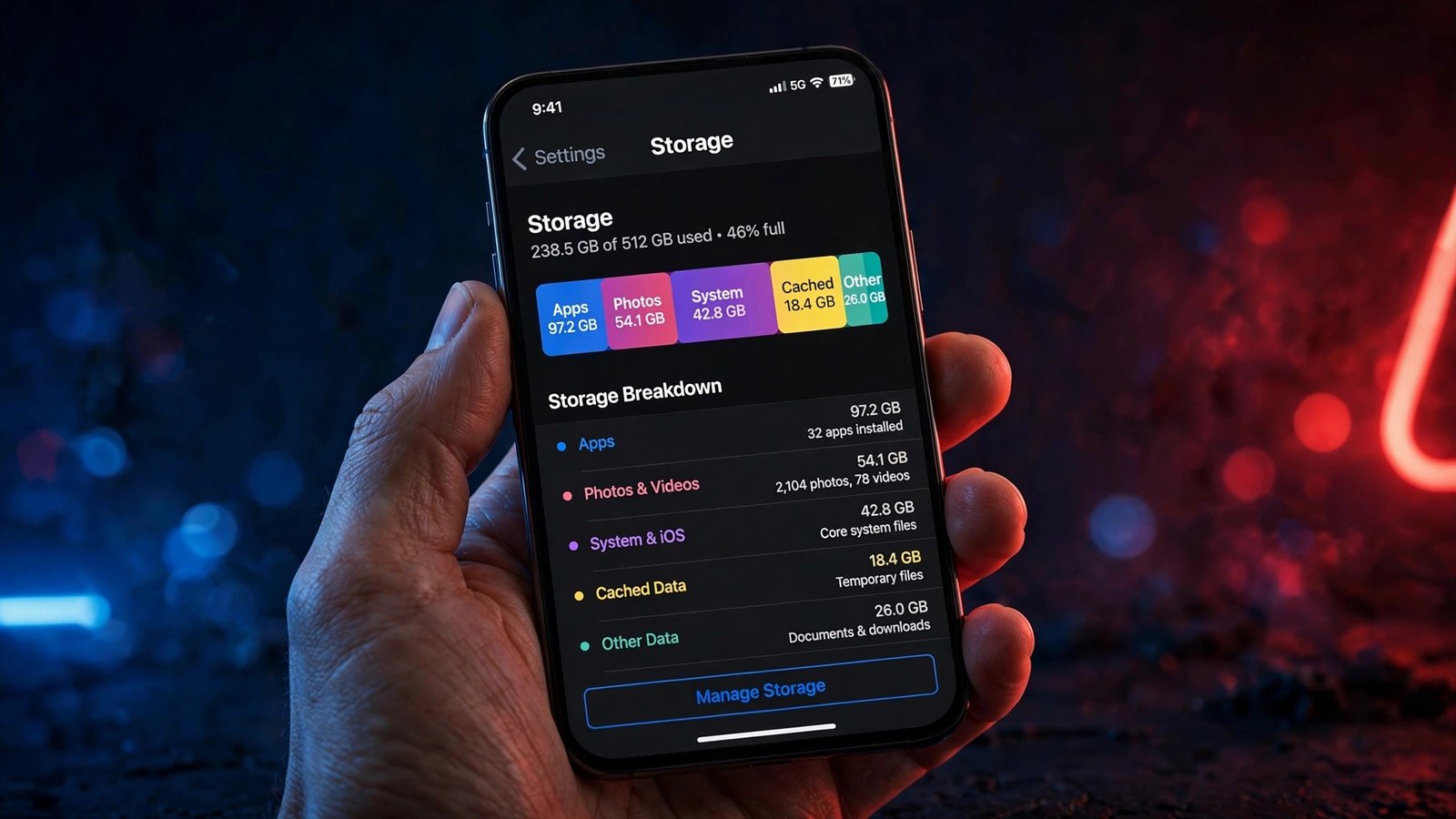
9 Fixes to Free Up Storage on iPhone
1. Empty the Recently Deleted albums (the step everyone skips)
This single step is the fix that makes every other step work. Open the Photos app, go to Albums, scroll to Recently Deleted, tap Select, then Delete All. Repeat in the Files app (Browse > Recently Deleted) and in Notes. Make this a habit after every cleanup session.
2. Turn on Optimize iPhone Storage
This is the highest-impact setting for photo-heavy phones. With iCloud Photos on, your iPhone can keep small, lightweight versions of photos on the device and pull the full-resolution originals from iCloud only when you open or zoom them. Enable it under Settings > Photos > Optimize iPhone Storage (on newer iOS versions this may sit under Settings > Apps > Photos). The catch: the full originals still need somewhere to live, and iCloud’s free tier is only 5 GB — so this works best with an iCloud+ plan. For everyday viewing on a phone screen, most people cannot tell the difference.
3. Offload unused apps instead of deleting them
On the iPhone Storage screen, tap any large app you rarely open and choose Offload App. This removes the app but keeps its documents and data; the icon stays on your Home Screen with a small cloud badge, and tapping it reinstalls everything intact. The no-regrets version of deleting.
4. Clear out Messages attachments
Years of shared photos, videos, and voice notes live inside your chats. Go to Settings > General > iPhone Storage > Messages and review the categories — Top Conversations, Photos, Videos. Delete the heavy threads you do not need. Then stop the pile from growing: in Settings > Messages, change Keep Messages to 1 Year instead of Forever.
5. Check WhatsApp, Telegram, and other chat apps
Chat apps keep their own media folders, separate from your photo library. Every video someone sent you in 2023 may still be sitting in WhatsApp’s storage. Open WhatsApp > Settings > Storage and Data > Manage Storage and clear the large files. Do the same audit for Telegram and Messenger. While you are giving your iPhone a health check, review these 7 charging mistakes that age your battery faster — storage and battery are the two things that wear an iPhone down fastest.
6. Delete downloaded podcasts, music, and videos
Auto-downloads are quiet about what they take. A podcast app keeps grabbing new episodes long after you stopped listening. Go to Settings > General > iPhone Storage > Podcasts (or Music, or your streaming apps) and remove downloaded episodes and albums. You do not need to delete the apps — just the downloads; everything stays available to stream.
7. Clear the Files Downloads folder and Safari data
Open the Files app, tap Browse > On My iPhone > Downloads, and sort by size. Old PDFs and files you opened once and forgot can add up to gigabytes. Then clear Safari’s accumulated website data under Settings > Apps > Safari > Clear History and Website Data.
8. Change how your camera saves space
Video is the hungriest format on your phone. If you do not need cinema-grade footage for everyday clips, go to Settings > Camera > Record Video and drop from 4K to 1080p. Also review Live Photos — each one is a photo plus a video clip. Small settings, large savings over a year.
9. Restart your iPhone after the cleanup
iOS sometimes needs a restart to recalculate and release cached space after a big cleanup. Power off, wait a few seconds, power back on, then re-check Settings > General > iPhone Storage to see your real new total.
How to Keep It From Filling Up Again

Storage cleanup is not a one-time event; it is maintenance. Turn on Optimize iPhone Storage once and leave it on. Set Messages to auto-delete after a year. Every few months, spend five minutes on the iPhone Storage screen and offload apps you have not opened. And if you are weighing an iCloud+ upgrade purely for space, do the math first — subscriptions add up, and these 12 realistic ways to save money on a tight budget can help you decide where that money goes.
Frequently Asked Questions
Why does my iPhone say storage is full when I deleted everything?
Almost always, the deleted files are still in the Recently Deleted albums in Photos, Files, or Notes, where iOS keeps them for 30 days. They still count against your storage until you empty those albums.
Does buying more iCloud storage free up space on my iPhone?
No. iCloud storage and iPhone storage are separate. More iCloud space gives you more cloud room; it does not add capacity to the phone. What does help is enabling Optimize iPhone Storage, which stores lightweight photo versions on the device and full originals in iCloud.
Is Optimize iPhone Storage safe? Will I lose photo quality?
Full-resolution originals stay in iCloud and download on demand when you open, edit, or zoom a photo. On the phone screen, the optimized versions look the same for everyday viewing. Just make sure your iCloud account has room for the originals.
How much free space should I keep on my iPhone?
There is no official Apple number, but keeping a few gigabytes free is wise: iOS needs headroom for system updates, and a nearly full phone can feel sluggish because apps cannot cache data properly. Under 2–3 GB free is your cue to clean up.